 Orderverse Docs
Storefront Overview
Understand the customer-facing order portal, how to preview it, and how saving works.
What is the Storefront?
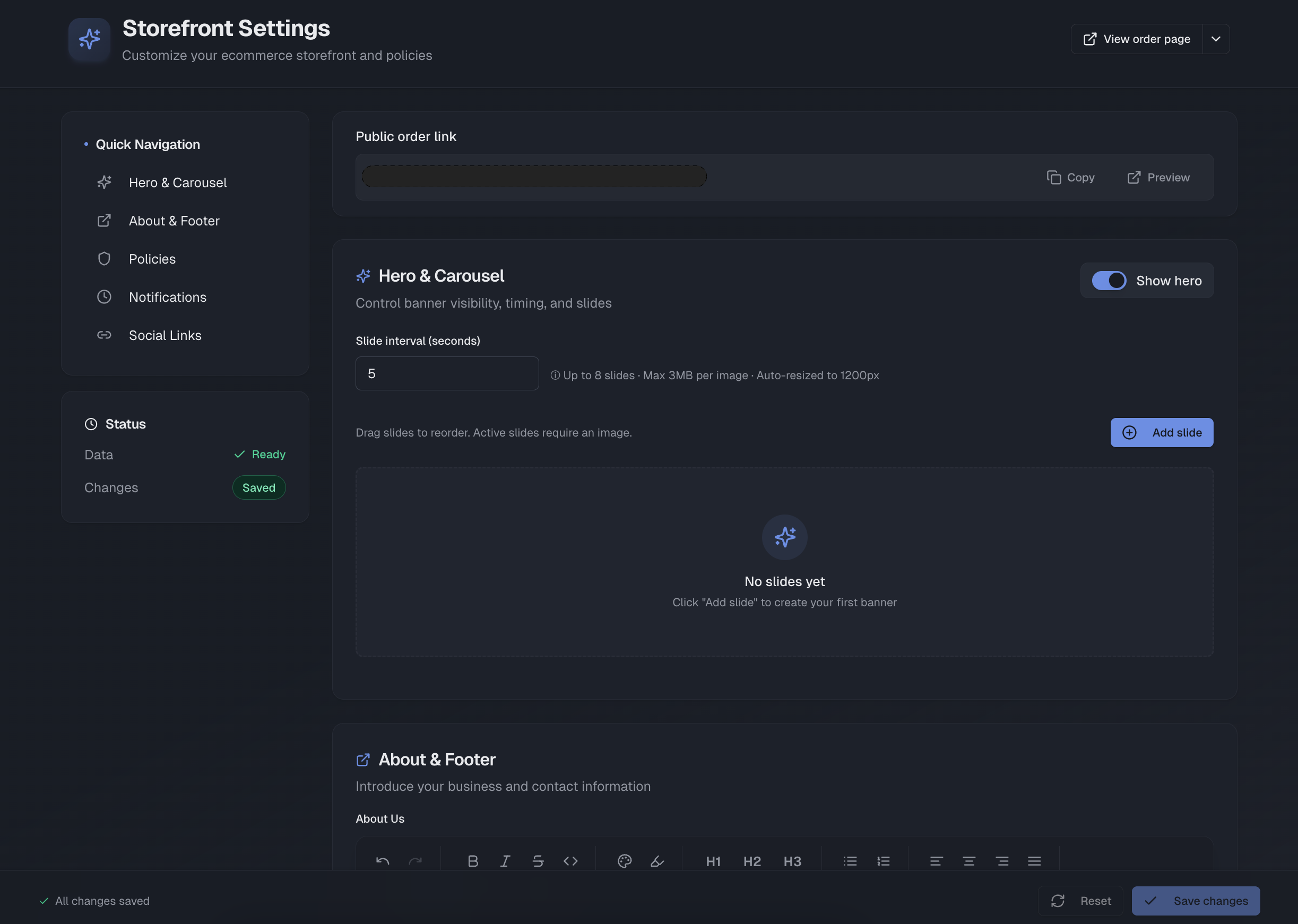
The Storefront is the public-facing order portal your customers see when they open their order link. The Storefront Settings page lets you customize how that portal looks and what information it shows.
Every workspace has a public order link:
https://orderverse.io/order/{code}
Public order link
At the top of the page your workspace's public order link is shown. This is a shared link — any visitor who has it can browse your storefront and place an order without logging in.
| Button | Action |
|---|---|
| Copy | Copies the link to the clipboard. |
| Preview | Opens the storefront in a new tab. |
Individual customer links (
/order/{customer-code}) are separate from the workspace public link. Both resolve to the same storefront but apply customer-specific pricing and settings.
Previewing the storefront
Click Preview in the header to open the storefront in a new tab. A dropdown lets you choose the preview layout:
| Option | Description |
|---|---|
| Standard | E-commerce style with product cards. |
| Quantity Grid | Compact grid layout for bulk ordering. |
Quick Navigation
The left sidebar shows a navigation panel with six sections:
| Section | Description |
|---|---|
| Hero & Carousel | Banner slides shown at the top of the storefront. |
| About & Footer | Business description, contact info, and footer text. |
| Pickup & Fulfilment | Pickup instructions shown at checkout when customers choose pickup. |
| Policies | Shipping, return, and terms policy pages. |
| Order Emails | Sender name, Return Policy button, and admin notification addresses. |
| Social Links | Social channel links shown in the footer. |
Saving changes
All sections share a single Save button in the sticky footer bar at the bottom of the page. No changes are applied until you save.
| Button | Action |
|---|---|
| Save | Applies all pending changes across all sections. |
| Reset | Discards all unsaved changes and reverts to the last saved state. |
The footer bar shows Unsaved changes when there are pending edits, and
Saved once everything is persisted. If you try to navigate away with
unsaved changes, a confirmation dialog appears.
Read-only mode
Sales Reps cannot edit Storefront Settings. The page is visible in read-only mode — fields are locked and the Save button is disabled.