 Orderverse Docs
Order Detail & Actions
View the full breakdown of an order, take actions, and understand how prices are snapshotted at confirmation.
Opening the detail panel
Double-click any row in the Orders grid to open the order detail panel.
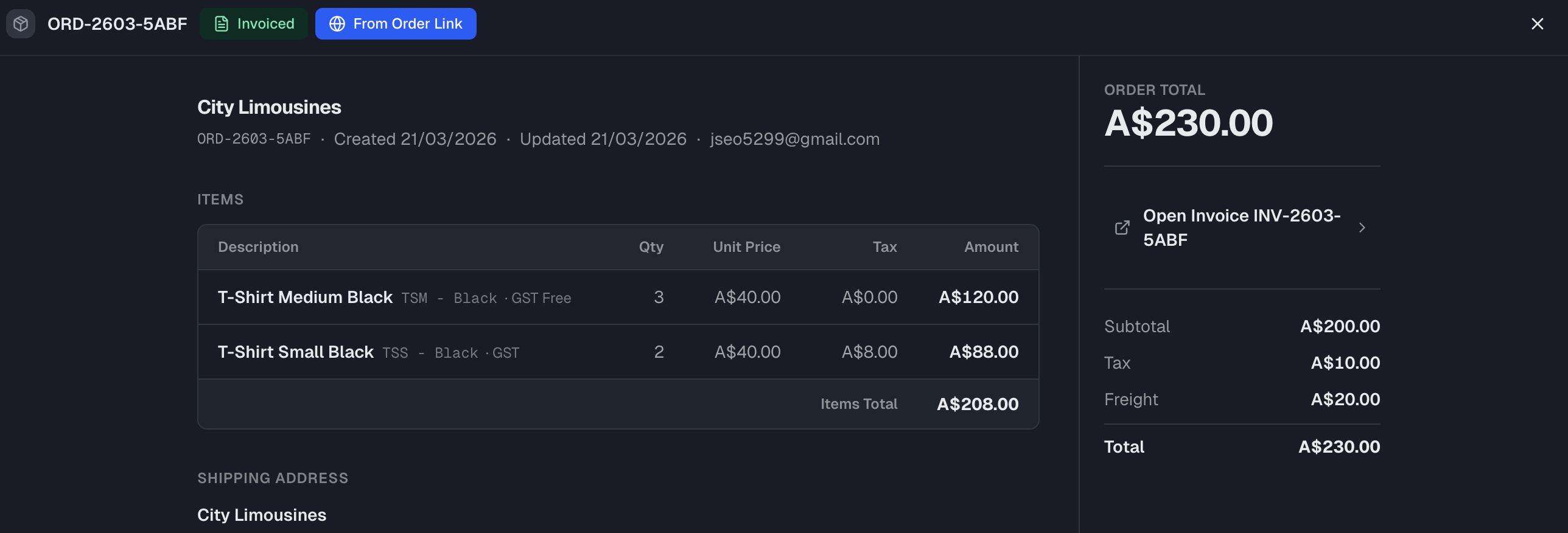
Header
Shows the order number, current status badge, and source badge.
Left — Order contents
Customer / Meta — Customer name, order number, creation date, and buyer email if the order came through the order link.
Items — Line-by-line breakdown of the order:
| Column | Description |
|---|---|
| Description | Product name and SKU. |
| Qty | Quantity ordered. |
| Unit Price | Price at the time the order was placed. |
| Tax | Tax amount for this line. |
| Amount | Line total (qty × unit price + tax). |
Each line may also show a price tag:
| Tag | Meaning |
|---|---|
| Group price | Price came from the customer's assigned Price Group. |
| Price overridden | An admin manually overrode the price. Shows the original price crossed out. |
Shipping Address — Populated when the customer entered a delivery address during checkout (online orders only).
Scheduled delivery — For route-based delivery orders, shows the saved date and route. This is the date recorded for the order, not a fresh calculation of the customer's next route date. If the order says Delivery date needs confirmation, resolve it in Delivery Reviews before dispatch.
Notes — A collapsible panel showing a count of non-empty note fields. Click the panel header to expand or collapse it.
Up to three fields may appear:
| Field | Description |
|---|---|
| Customer Note | Left by the customer at checkout. Read-only. |
| Current Customer Memo | The customer's current internal memo from the customer record. Read-only. Hidden when the customer has no memo. |
| Internal Note | Admin-only note for your team. Not shown to the customer. Editable. |
Editing the Internal Note
Click Edit next to the Internal Note label to enter edit mode. A plain textarea opens — enter your note and click Save. Click Cancel to discard changes.
- The Edit button is only available to users with order edit permission.
- Saving an empty note clears the field.
- Changes are saved immediately without leaving the order detail panel.
Right rail — Summary and actions
Order Total — The order total is shown prominently at the top of the rail.
Amount breakdown:
| Row | Description |
|---|---|
| Subtotal | Sum of all line amounts before tax and freight. |
| Tax | Total tax across all lines. |
| Freight | Freight charge for this order. |
| Total | Final order total. |
Stripe Payment — If the order was paid online via Stripe, the Payment Intent ID is shown here.
Actions
The available actions depend on the current status of the order.
Draft orders
| Action | Result |
|---|---|
| Confirm Order | Locks the order and moves it to Confirmed status. Prices are snapshotted at this point. |
| Delete Order | Permanently deletes the draft. Cannot be undone. |
Confirmed orders
| Action | Result |
|---|---|
| Generate Invoice | Creates an invoice from the order and moves it to Invoiced status. |
| Back to Draft | Reverts the order back to Draft so it can be reviewed again. |
Invoiced orders
| Action | Result |
|---|---|
| Open Invoice | Opens the linked invoice in a new tab. |
Once an invoice is generated the order status becomes Invoiced and cannot be reverted.
Price snapshot
When an order is confirmed, prices are locked at the values that applied at that moment — including any Price Group overrides or manual price overrides. The historical unit price, tax code, and line totals are stored permanently and are not affected by future price changes.