 Orderverse Docs
Managing Customers
Add and manage customers, share order links, import in bulk, and filter the customer grid.
Overview
The Customers page is a grid showing all customer records in your workspace. Each row represents one customer. Double-click a row to open the full customer detail panel.
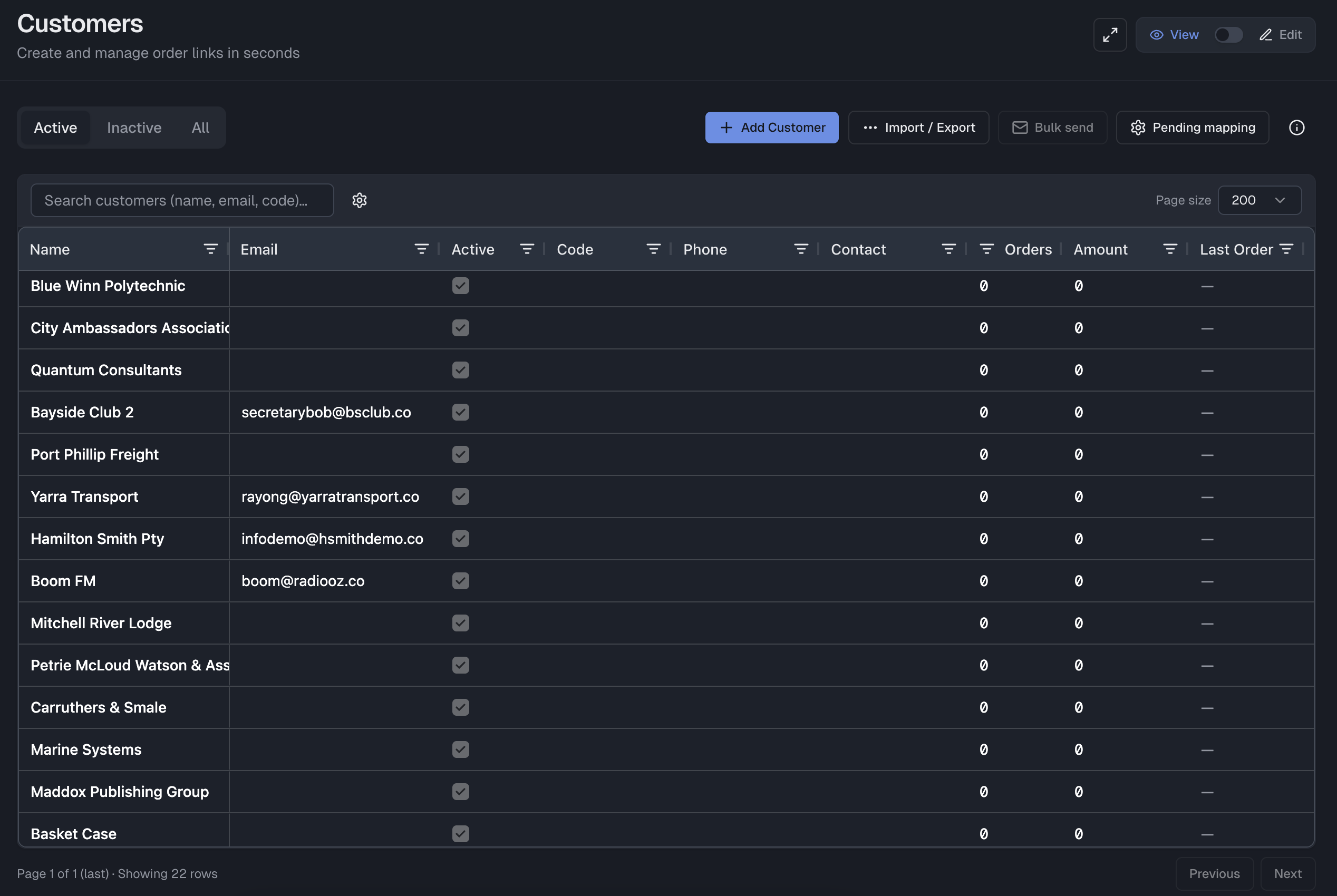
Grid columns
| Column | Description |
|---|---|
| Name | Customer's display name. |
| Code | Your internal reference code (optional). |
| Primary contact email. Required to send order links by email. | |
| Phone | Contact phone number. |
| Contact | Contact person name. |
| Active | Master status. When inactive, the customer cannot place orders. Read-only when Contacts sync is active. |
| Order Web Access | Effective access state for the order link: Available, Blocked, or Blocked — inactive. |
| Orders | Total number of orders placed. |
| Amount | Total order value across all orders. |
| Last Order | Date of the most recent order. |
| Actions | Copy order link, send order link, open detail. |
When Configuration → Integrations → Sync Contacts is active for a connected Xero workspace, some columns become read-only for inline grid editing:
| Column | Read-only when |
|---|---|
| Name, Code, Email, Active | Contacts sync is active |
| Phone | Contacts sync is active and Phone Type is mapped to a Xero phone field |
The Order Web Access state reflects the Order Web Blocked setting in the customer detail panel. This is always locally editable — it is not managed by Xero and is not locked by Contacts sync.
Adding a customer
Click + Add Customer to open the create form.
If Configuration → Integrations → Sync Contacts is active for a connected Xero workspace, the button still appears but opens a short guidance modal instead of the local create form. In that mode, create the customer in Xero first and then run Sync Contacts.
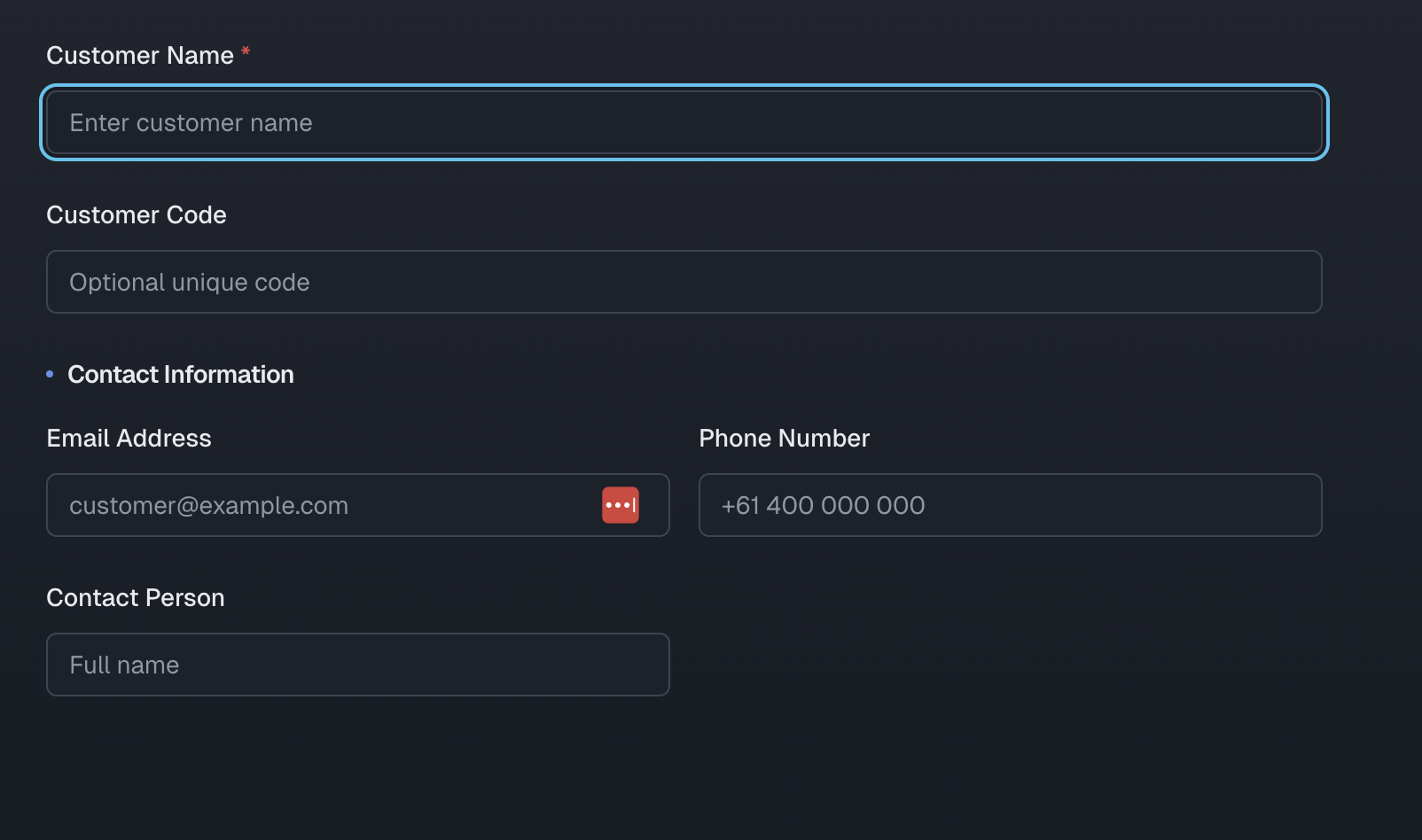
| Field | Required | Notes |
|---|---|---|
| Customer Name | Yes | Must not be blank. |
| Customer Code | No | Your internal reference code. |
| Email Address | No | Required if you want to send the order link by email. |
| Phone Number | No | |
| Contact Person | No | Name of the primary contact at this customer. |
Click Create Customer (or press Enter when Name is filled) to save.
Order link
Every customer is automatically assigned a unique, permanent order link when they are created:
https://orderverse.io/order/{code}
The code never changes. Copy the link from the Actions column or from inside the customer detail panel. Send it directly to your customer — they open it in a browser and place their order without logging in.
A customer's order link is blocked in two cases: their status is Inactive, or Order Web Blocked is turned on in their detail panel. These are independent controls — a customer can be active in Xero but still have their order web access paused locally.
Sending the order link by email
Click the email icon in the Actions column to open the send modal.
- Choose a message template: Default, Short, or Friendly.
- Edit the subject and body before sending.
- The customer's email address must be set for the send button to be enabled.
Bulk send
Select multiple rows in the grid, then click Bulk send in the toolbar. All selected customers with an email address receive the link. Inactive customers are excluded unless you filter to All.
Maximum 300 recipients per bulk send request.
Importing customers
Use Import / Export to bulk-import customers from CSV or XLSX, paste rows from Excel, or export the current grid view. Imports use a Preview → Confirm → Result flow so you can review parsed rows and any validation issues before anything is saved.
If Contacts sync is acting as the customer source of truth, local customer import is blocked for the same reason as local customer create.
See Import & Export for column specifications, file limits, and the full error reference.
Pending Customers
When a buyer places an order using the workspace public order link without being pre-registered, they are saved as a Pending Customer — not added directly to your Customers list. The order is accepted normally.
An admin reviews the pending record and maps it to an existing customer. If Contacts sync is not the source of truth, the admin can also create a new local customer first and then map it. If Contacts sync is active, create the customer in Xero first, run Sync Contacts, and then map it.
See Pending Customers for the full workflow.
Filtering customers
| Filter | Shows |
|---|---|
| Active | Only customers with status active (default view). |
| Inactive | Only inactive customers. |
| All | All customers regardless of status. |
Use the search box to find customers by name, code, email, phone, or contact.
Customer Activity
The Activity page (accessible from the sidebar under Customers → Activity) shows order portal engagement across all customers — link opens, confirmation passes, verifications, checkout starts, and orders submitted. Use it to identify who is actively browsing, who has stalled, and who recently placed an order.
See Customer Activity for the full reference.