 Orderverse Docs
Delivery Reviews
Confirm a new date for an order whose original delivery date can no longer be promised.
When an order needs review
An order can need a delivery decision after a route date is skipped or moved, or when a payment completes after its delivery-date hold has expired. The order and payment are retained, but the original date must not be treated as confirmed. The original route and date remain visible for reference.
Open Configuration → Delivery Reviews to see orders marked Review required. The order link opens its detail panel. Do not dispatch against an unconfirmed delivery date.
Owners and admins also see outstanding delivery work in the header notification bell. The Delivery Reviews count stays visible until the affected orders are resolved, even if notifications are marked as read. Use Review, Retry, or Recover to open the matching section for delivery decisions, failed customer emails, or paid checkouts. The count beside Delivery Reviews in Configuration shows only orders awaiting a delivery decision. On mobile, the bell remains available and the Configuration selector shows the review count. Counts refresh automatically, so a newly resolved item may take a moment to disappear.
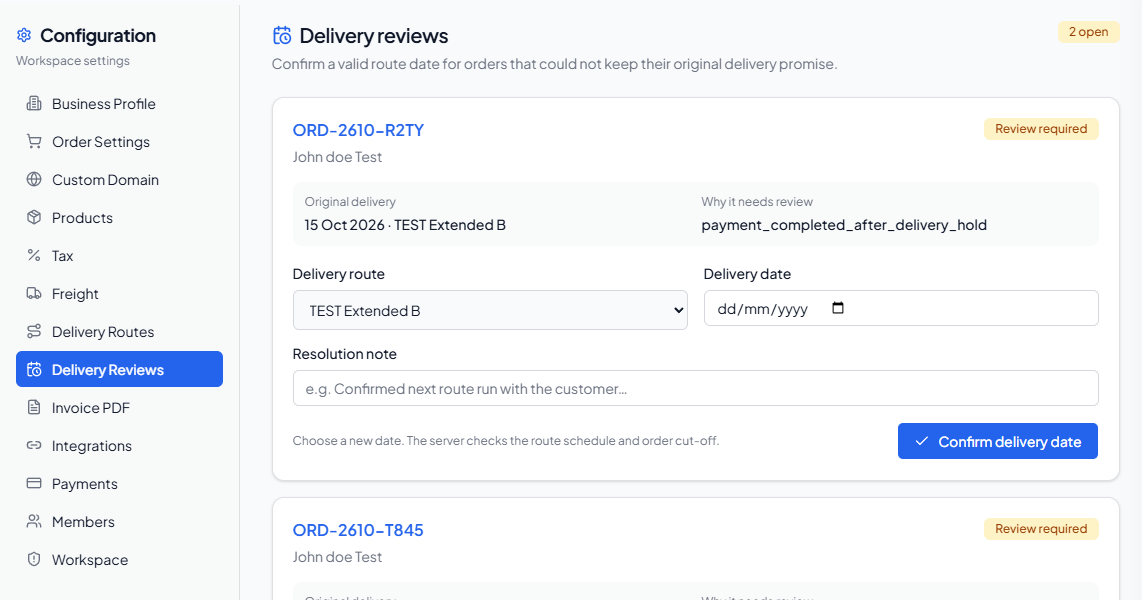
Confirm a delivery date
- Check the Original delivery and Why it needs review details.
- Choose an active Delivery route and enter a Delivery date.
- Add a Resolution note explaining the decision.
- Click Confirm delivery date.
The system checks the selected route's current schedule and order cut-off before saving. If the schedule or order changed while you were reviewing it, refresh the page and choose again. The original delivery record remains available for audit.
After the new date is saved, the system attempts to email the customer. If the email fails, the saved date remains in place and the failed message appears under Customer email follow-up. Use Retry email there, or contact the customer directly if needed.
Paid checkout recovery
The Paid checkout recovery section lists older paid checkouts that still need an order and invoice linked to them. Click Verify & recover to check the payment with Stripe and resume order creation. If payment cannot be confirmed, check the reported status before taking further action; do not create a duplicate manual order solely from this queue.