 Orderverse Docs
Invoice Detail & Actions
View invoice line items, payment history, send to customers, push to Xero, and manage payments.
Opening the detail panel
Double-click any row in the Invoices grid to open the invoice detail panel.
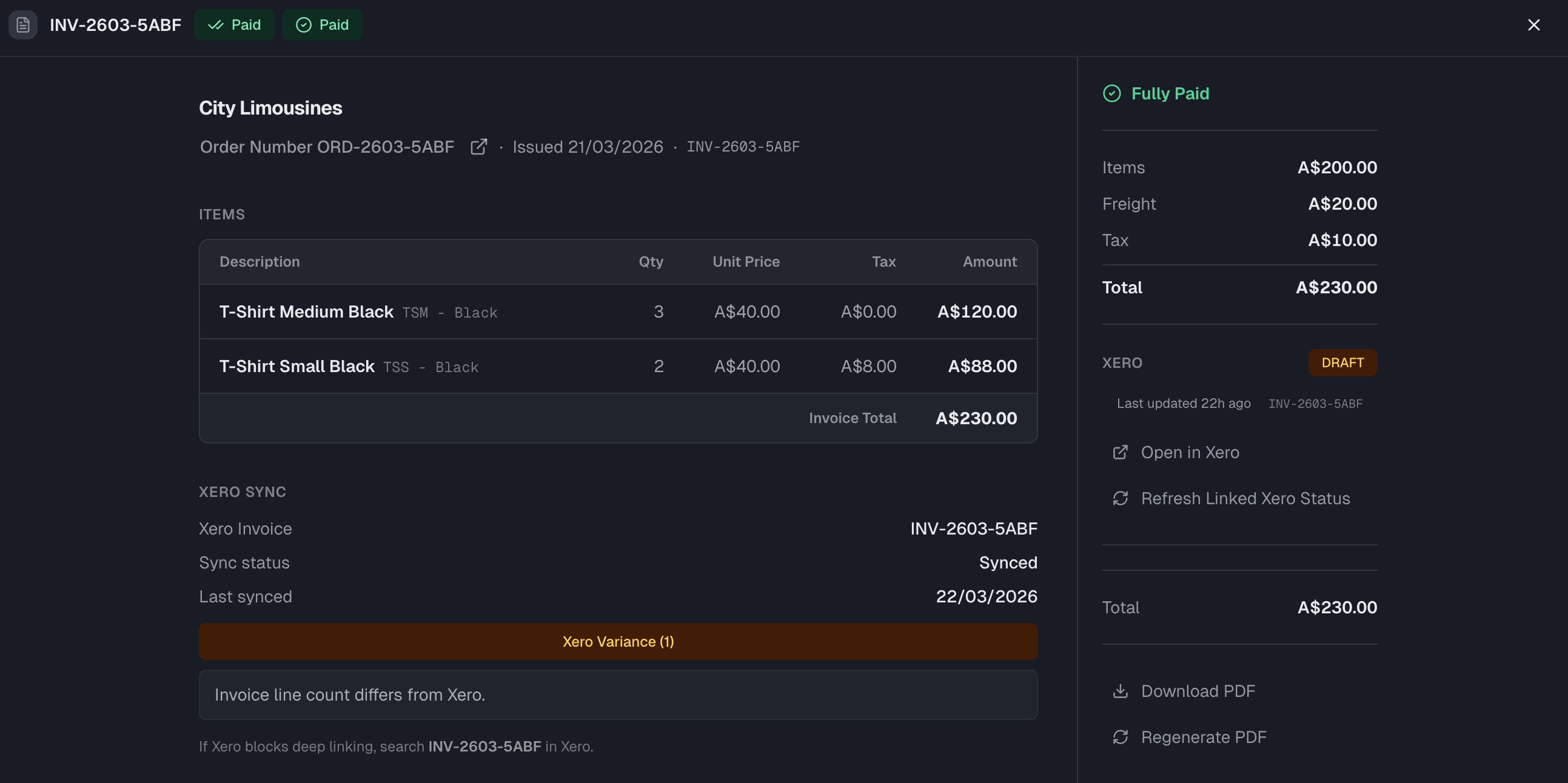
Header
Shows the invoice number, current status badge, and due date badge. The due date badge turns red when the invoice is overdue.
Left — Invoice contents
Customer / Meta — Customer name, linked order number (click to open the order), issue date, due date, and invoice number.
Items — Line-by-line breakdown:
| Column | Description |
|---|---|
| Description | Product name and SKU. Non-item lines (freight, surcharge, discount) show their type in brackets. |
| Qty | Quantity (item lines only). |
| Unit Price | Unit price (item lines only). |
| Tax | Tax amount for this line. |
| Amount | Line total. |
Payment Progress — A progress bar showing how much of the invoice has been paid. Visible only when a partial payment exists and the invoice is not yet fully paid or voided.
Payment History — A list of payments recorded against this invoice, showing amount, payment method, reference, date, and status.
Refund History — A list of refunds processed against this invoice, showing amount, reason, date, and status.
Xero Sync — Appears when Xero is connected. Shows the linked Xero invoice number, sync status, last synced date, and any sync errors or variances detected.
Right rail — Summary and actions
Balance Due / Paid / Refunded — The rail header shows:
| State | Display |
|---|---|
| Unpaid or partial | Balance Due amount |
| Fully paid | "Fully Paid" |
| Fully refunded | "Fully Refunded" |
Amount breakdown:
| Row | Description |
|---|---|
| Items | Sum of all product line amounts. |
| Freight | Freight charge. |
| Surcharge | Surcharge if applicable. |
| Discount | Discount if applicable. |
| Tax | Total tax across all lines. |
| Total | Final invoice total. |
Editing invoice content
For Pending invoices that are not yet linked to Xero, you can edit line item descriptions, quantities, unit prices, freight, and add or remove items directly in the detail panel.
Click Edit Items & Freight in the Items section to enter edit mode.
See Editing Invoice Content for the full guide.
Actions
Send to Customer
Emails the invoice to the customer. Available for Pending and Sent status invoices. Moves status to Sent after sending.
Send Checkout Link
Generates a Stripe payment link and emails it to the customer. Available for any unpaid, non-void invoice. If the customer has no email on file, the link is created but not emailed.
Requires Stripe to be connected. If Stripe is not connected this action is not available.
Mark as Paid
Manually marks the invoice as paid. Use this when payment was received outside of Stripe (e.g. bank transfer, cash). Moves status to Paid.
Void
Cancels the invoice permanently. A reason is required. The void reason is stored and can be edited after voiding. Voided invoices cannot be reopened.
Download PDF
Downloads the invoice as a PDF file.
Xero integration
When Xero is connected, the invoice detail panel shows a Xero section in the right rail.
| Action | Description |
|---|---|
| Push to Xero | Sends the invoice to Xero for the first time. Available when not yet linked. |
| Refresh Linked Xero Status | Pulls the latest status from Xero for an already-linked invoice. |
| Open in Xero | Opens the linked Xero invoice directly in a new tab. |
A cooldown period applies after each push or refresh to prevent duplicate sync requests.
If a sync error occurs it is displayed in the Xero section. Errors related to tax rate mapping or freight configuration include a direct link to the relevant settings page.
Bulk Xero push
From the main Invoices toolbar, you can push multiple invoices to Xero at once using Push to Xero (select invoices in the grid first). A preview shows how many invoices will be pushed before you confirm.