 Orderverse Docs
Managing Promotions
View, edit, and deactivate promotions — percentage discounts or fixed price overrides scoped per product UoM.
Overview
Promotions let you apply price discounts or fixed price overrides to specific product unit-of-measure combinations. Each promotion is scoped to a product UoM and can optionally be limited to a date range, a customer price group, or all customers.
The Promotions page has four tabs:
- Active — Promotions that are live right now.
- Scheduled — Promotions that are enabled but have not started yet.
- History — Ended or inactive promotions, with date-range search.
- Batch Apply — Configure a promotion and select candidates on the main screen, then preview and apply in a modal.
Promotion types
| Type | Description |
|---|---|
| % Discount | Reduces the base price by a percentage. A value of 10 means 10% off. |
| Fixed Price Override | Replaces the price with a specific fixed amount. |
Promotion targets
| Target | Description |
|---|---|
| All customers | Applies to every customer regardless of price group. |
| Base price only | Applies only to customers on the base (default) price. |
| Price Group | Applies only to customers assigned to a specific price group. |
Promotion period
| Period | Display |
|---|---|
| Start and end set | dd/mm/yy – dd/mm/yy |
| Start only | From dd/mm/yy |
| End only | Until dd/mm/yy |
| No dates | Always (promotion is always active while enabled) |
Active tab
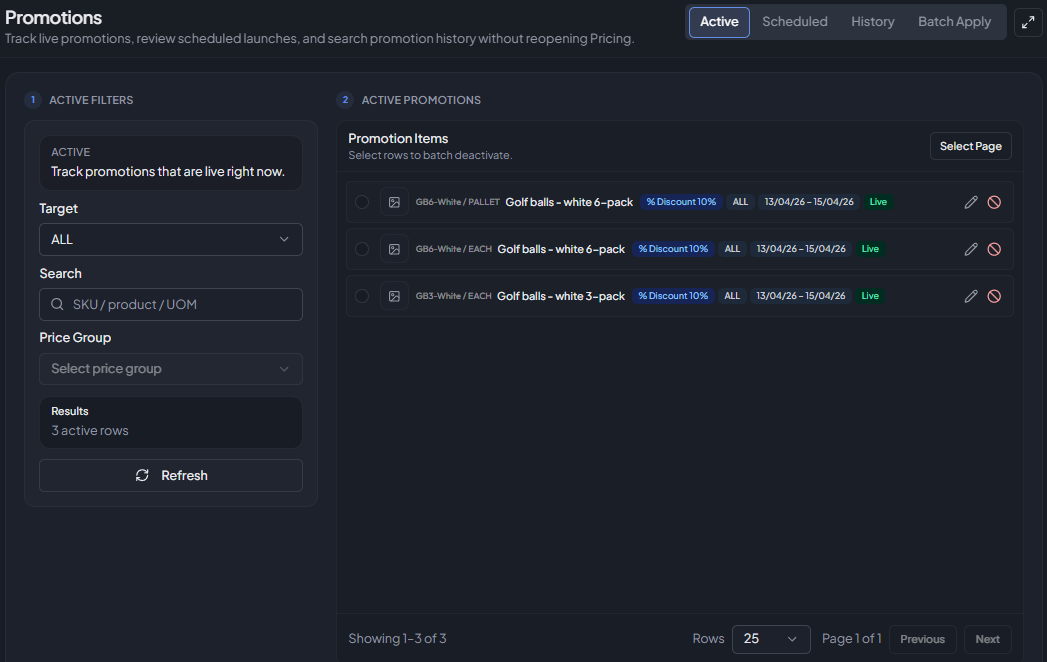
Shows promotions that are currently live in your workspace.
Filtering (Active)
- Target — Filter by All / Base / Price Group.
- Price Group — Filter by a specific price group (only shown when target is Price Group).
- Search — Search by product name or SKU.
Promotion row
| Field | Description |
|---|---|
| Product thumbnail | Small product image. |
| SKU / UoM | The product SKU and unit-of-measure this promotion applies to. |
| Product name | Name of the product. |
| Type badge | % Discount or Fixed Price with the value. |
| Target badge | All, Base, or the price group name. |
| Period badge | Date range or Always. |
| Status badge | Live, Scheduled, Ended, or Inactive — the promotion's current lifecycle state. |
| Label | Optional internal label for the promotion. |
Inline actions
| Action | Description |
|---|---|
| Edit (pencil icon) | Opens the edit dialog to change type, value, target, dates, label, or active status. |
| Deactivate (ban icon) | Deactivates the promotion. The record and audit history are retained — it is not deleted. |
Batch deactivate
Use Select Page to select all rows on the current page. The Deactivate {n} button appears when one or more rows are selected. Use Clear to deselect everything.
Batch deactivate is available on the Active and Scheduled tabs only.
Scheduled tab
Shows promotions that are enabled and scheduled to start in the future.
Filtering (Scheduled)
- Target — Filter by All / Base / Price Group.
- Price Group — Filter by a specific price group (only shown when target is Price Group).
- Search — Search by product name or SKU.
Row actions
The same Edit and Deactivate row actions are available as in the Active tab. Batch select and batch deactivate are also supported.
History tab
Shows promotions that have already ended, or promotions that were manually made inactive.
History is read-only. Edit, Deactivate, and row selection are not available for history records.
Filtering (History)
- Target — Filter by All / Base / Price Group.
- Price Group — Filter by a specific price group (only shown when target is Price Group).
- Search — Search by product name or SKU.
- History Status — Filter by All / Ended / Inactive.
- From / To — Search by overlap with a historical date range.
Date range behavior
History date filters use period overlap rules:
- A promotion is included if its active period overlaps the selected range.
- Open-ended promotions are matched using whichever boundary is available.
- If no dates are entered, History returns all ended and inactive promotions that match the other filters.
The From and To fields default to the last 30 days when you first open the History tab.
Editing a promotion
Click the Edit (pencil) icon on any row to open the edit dialog. You can change:
- Promotion type and value
- Target (All / Base / Price Group)
- Price group assignment
- Start and end dates
- Label
- Active / inactive toggle
Changes take effect immediately on save.
Batch Apply tab
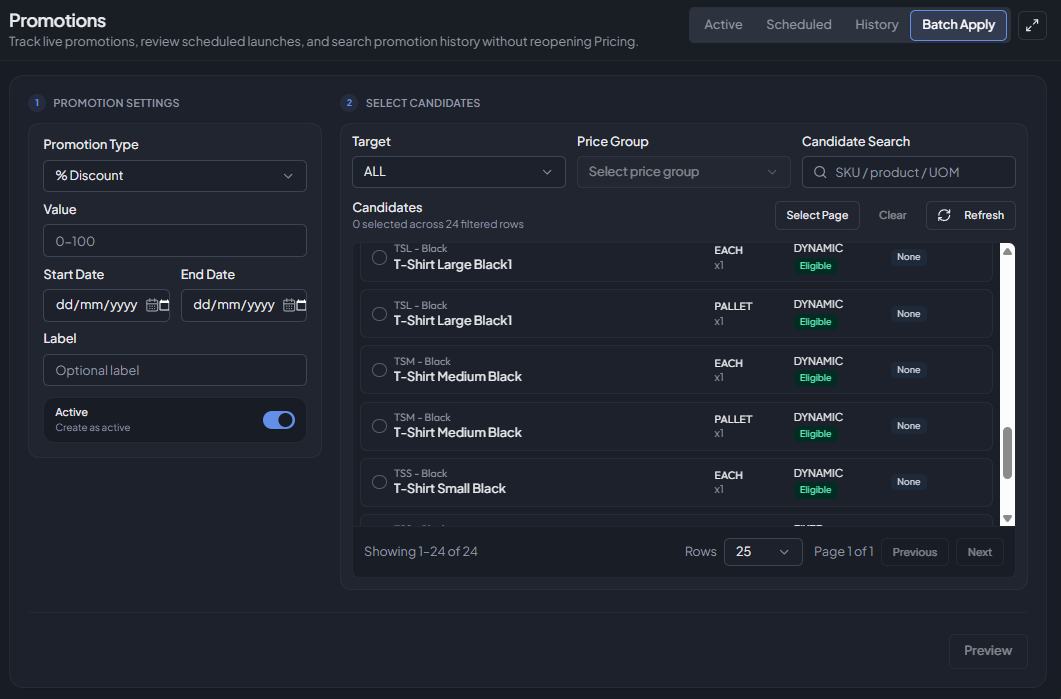
Use Batch Apply to configure a promotion once and apply it to multiple products in a single operation. Select candidate products on the main screen, preview the changes in a modal, then confirm to apply.
Deactivating a promotion
Deactivating a promotion stops it from being applied to new orders but preserves the promotion record and its audit history. Deactivated promotions no longer appear in the Active list by default.
Promotions cannot be hard-deleted through the UI. Deactivate to remove them from the active list.