 Orderverse Docs
Invoice PDF
Customise the appearance of invoice PDF exports — template style, logo, colors, typography, and footer content.
Overview
The Invoice PDF tab controls how invoices look when exported as PDFs. Changes apply to all new PDF downloads.
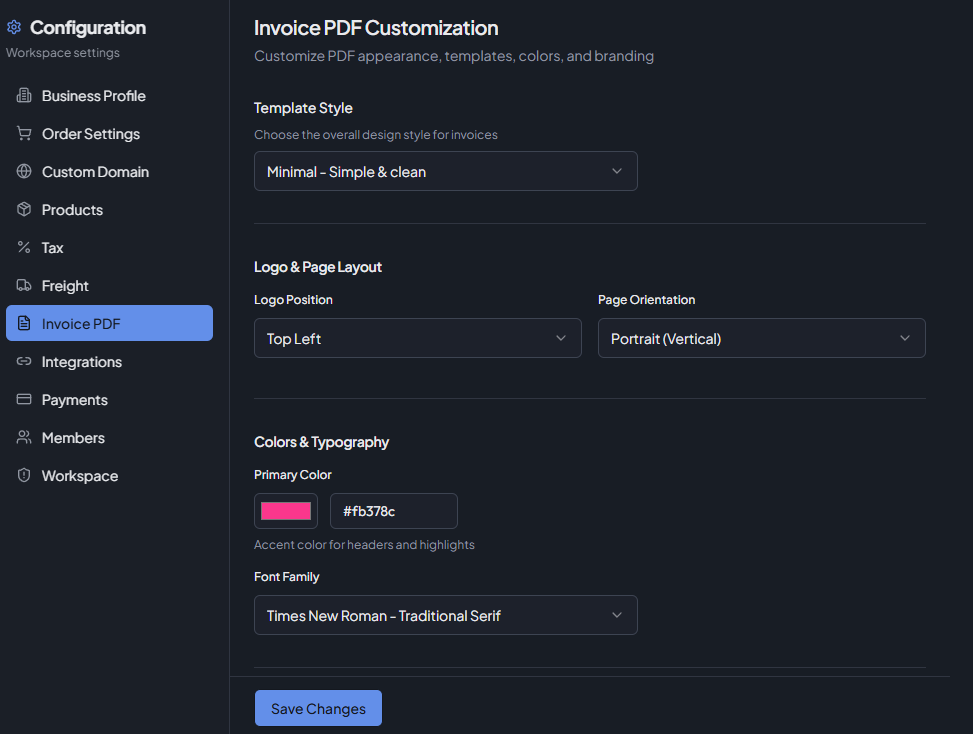
Template Style
Sets the overall visual design of the PDF.
| Style | Description |
|---|---|
| Modern | Clean layout with color accents. |
| Classic | Traditional, formal document style. |
| Minimal | Simple and unbranded. |
Logo & Page Layout
| Setting | Options | Description |
|---|---|---|
| Logo Position | Top Left, Center, Top Right | Where the company logo appears in the PDF header. |
| Page Orientation | Portrait (Vertical), Landscape (Horizontal) | Page size orientation. |
Colors & Typography
| Setting | Description |
|---|---|
| Primary Color | Accent color used for headers and highlights. Enter a hex value (e.g. #3B82F6) or use the color picker. |
| Font Family | Font used throughout the PDF. Options: Calibri, Arial, Times New Roman, Courier New, Verdana. |
Visibility Options
Toggle each section on or off:
| Option | Description |
|---|---|
| Show Logo | Display the company logo in the PDF header. |
| Show Bank Details | Display bank account information for manual payment. |
| Show Payment Terms | Display payment terms and conditions. |
| Show Footer Note | Display a custom message at the bottom of the invoice. |
Custom Footer Text
Shown at the bottom of every invoice when Show Footer Note is enabled.
- Max 500 characters.
- Example:
Thank you for your business!
Saving
Click Save Changes in the sticky footer bar to apply all updates.