 Orderverse Docs
Delivery Routes
Set recurring delivery days, assign customers to routes, and adjust individual delivery dates.
Set up delivery routes
Delivery routes let your customers see the next open delivery date for their assigned route when they order. Set up the routes before turning on customer delivery dates.
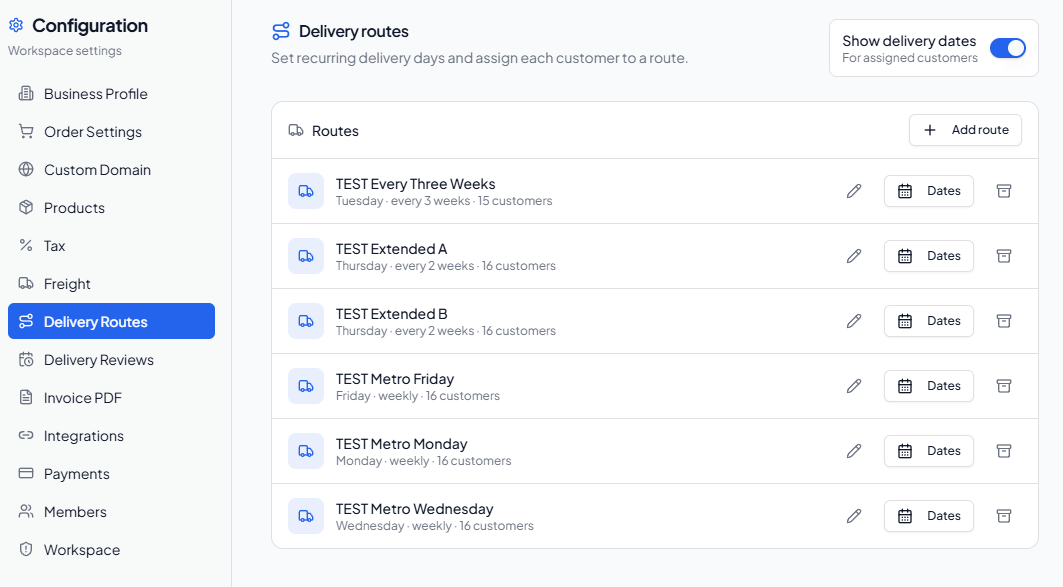
- Open Configuration → Delivery Routes and click Add route.
- Enter a Route name, select the Delivery day and Repeat interval, and choose the First delivery date. The date must fall on the selected weekday.
- Check the Next delivery dates preview, then click Create route.
- Use Add another day if the same route also runs on another weekday.
- Open each customer's Shipping tab and choose their Assigned route. See Customer Detail.
- Once the workspace time zone, an active route schedule, and active customer assignments are ready, turn on Show delivery dates.
The form offers Every week, Every 2 weeks, and Every 3 weeks. Each day on a route has its own first delivery date, so two alternating routes can start on different weeks. The preview shows the next three dates and whether their order cut-off has passed.
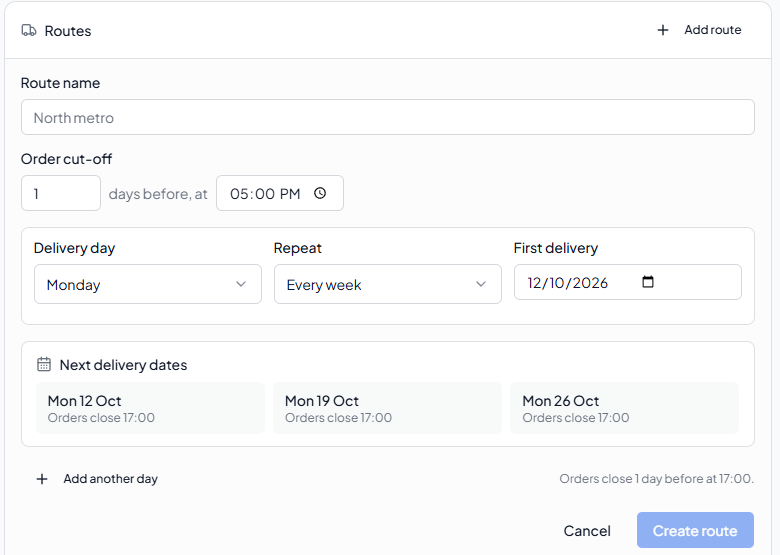
Order cut-off
New routes default to orders closing one calendar day before delivery at 5:00 p.m. You can change the number of days and time in Order cut-off. The cut-off uses the workspace time zone. For example, a Monday delivery with the default cut-off closes on Sunday at 5:00 p.m.
When a cut-off has passed, that delivery is no longer offered for a new order. The route's operating dates can still appear in the schedule preview.
Change one delivery date
Use an adjustment for a public holiday or any other one-off change:
- Find the route and click Dates.
- Select an upcoming date or enter a Scheduled date.
- Choose Skip delivery, Move delivery, or Add delivery. For Move delivery, enter the New date; for Add delivery, enter the Extra date.
- Click Save adjustment and review the number of affected orders and open checkouts before confirming.
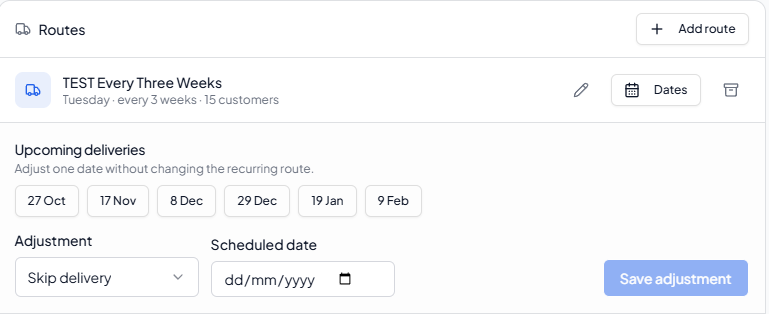
An adjustment changes only that occurrence; it does not shift the route's future weekly, two-weekly, or three-weekly pattern. Existing affected orders are sent to Delivery Reviews for a new date rather than silently moved. Open payment sessions may also be expired. If another team member changes the schedule while you are reviewing it, refresh and check the impact again.
Saved adjustments appear under the route's Dates view. Use Remove adjustment if the one-off change is no longer needed.
Edit or archive a route
Use the pencil button beside a route to change its name, schedule, or cut-off. Check the impact confirmation before saving a schedule change. Use the archive button to stop using a route; reassign its customers first if they still need delivery dates.
Before you enable dates
If Show delivery dates is unavailable, the message above the route list identifies what needs attention: assign active customers to routes, set the workspace time zone, or add an active route schedule. Delivery routes are unavailable until the required API database update is installed.
Route assignment is manual. The system does not select a route from a postcode, exclude public holidays automatically, optimise a driver's journey, or let buyers choose from a calendar of dates.