 Orderverse Docs
Integrations (Xero)
Connect Xero to sync contacts, products, tax rates, and invoices between Orderverse and your Xero organisation.
Overview
The Integrations tab manages the Xero connection. Once connected, you can sync customers, products, tax-rate references, and push invoices directly to Xero.
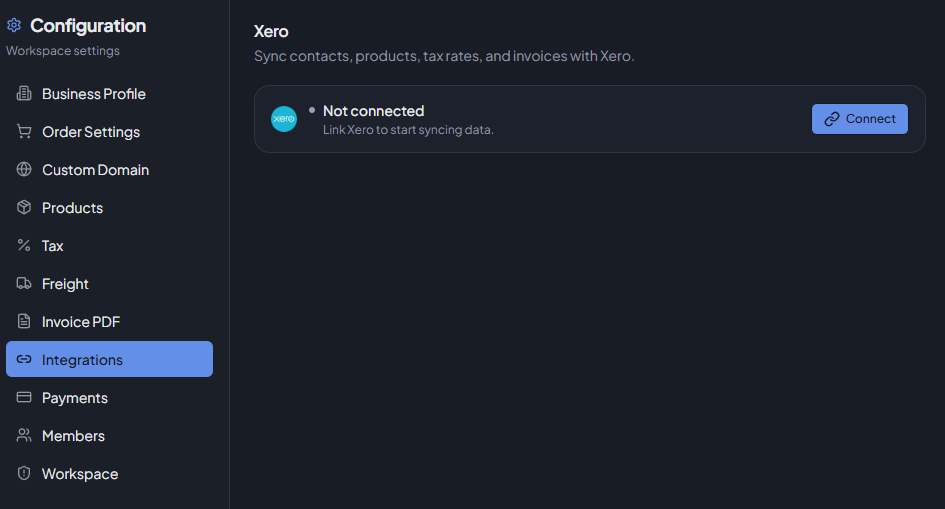
Connecting Xero
Click Connect Xero. A Xero authorisation window opens. After you approve access, the connection is confirmed and sync becomes available.
| Status | Description |
|---|---|
| Connected | Shows the Xero organisation (tenant) name. |
| Not connected | Sync is unavailable. |
Once connected, use Reconnect to refresh the OAuth token, or Disconnect to remove the connection entirely.
Disconnecting stops all syncing and removes stored tokens. You can reconnect at any time.
Sync Configuration
Controls what data is synchronised from Xero into Orderverse.
| Toggle | Description |
|---|---|
| Sync Contacts | Import Xero contacts as customers. |
| Sync Items | Import Xero items as products. |
| Sync Tax Rates | Import Xero tax rates as references for tax mapping. |
| Sync Invoices | Enable pushing invoices from Orderverse to Xero, and refreshing linked invoice status. |
| Base Price Sync | Automatically update a product's base price from Xero during item sync. |
Dependency rules:
- Items sync requires Tax Rates sync to remain enabled.
- Invoice sync requires Contacts, Items, and Tax Rates sync to all be on. Those three are locked while Invoice sync is active.
Contact sync field mapping
| Field | Option | Description |
|---|---|---|
| Phone Type | Default, Direct dial, Fax, Mobile, Do not sync | Which Xero phone field to import as the contact phone. |
| Address Type | Billing Address, Delivery Address, Do not sync | Which Xero customer address to import. |
- Do not sync keeps that field local in Orderverse.
- If Phone Type is set to Do not sync, the customer's phone stays editable locally.
- If Address Type is set to Do not sync, the customer's address stays editable locally.
Customer and product ownership
When Xero sync is active, Orderverse keeps the create buttons visible but changes what happens next:
- With Sync Contacts on, new customers should be created in Xero first and then pulled in with Sync Contacts.
- With Sync Items on, new products should be created in Xero first and then pulled in with Sync Items.
- Customer identity fields such as name, code, email, and status stay read-only while Contacts sync is active.
- Phone and address only become read-only when their mapping is set to a real Xero field instead of Do not sync.
- Product master fields such as SKU, product name, tax code, stock, and optionally base price stay read-only while Items sync is active.
- Storefront-only fields, freight settings, notes, and other local-only fields remain editable.
- Order Web Blocked on customer records is always locally editable. It is independent of the Xero-managed customer status and is never locked or overwritten by Contacts sync.
Manual Sync
Trigger an immediate sync for testing or after making changes in Xero.
| Button | Description |
|---|---|
| Sync Contacts | Pulls the latest contacts from Xero. |
| Sync Items | Pulls the latest items from Xero. |
| Sync Tax Rates | Pulls the latest tax rates from Xero. |
A cooldown applies after each sync to prevent duplicate requests. The button shows the remaining cooldown time when active.
Freight Export
Configures how freight charges are represented when an invoice is pushed to Xero. Only relevant when Invoice sync is enabled.
| Setting | Description |
|---|---|
| Freight export mode | Separate freight line (Recommended) — exports freight as a non-item charge using a revenue account code. Use mapped Xero item — exports freight as a specific Xero item. |
| Freight description | Line description used for the freight entry in Xero. Defaults to Freight. |
| Freight revenue account code | Xero account code for the freight line (e.g. 200). Required for Separate freight line mode. |
| Mapped Xero freight item code | The Xero item code to use for freight (e.g. FREIGHT). Required for Use mapped Xero item mode. |
Manual/TBC freight must be finalised to an actual amount before a Xero export can proceed.
Click Save Freight Export to apply.
Sync Status
A table showing the current state of each sync scope:
| Column | Description |
|---|---|
| Scope | contacts, items, or tax-rates. |
| Status | idle — no active sync. cooldown — a sync was recently run. |
| Last Synced | When the last successful sync completed. |
| Cooldown | When the cooldown expires. |
Click Refresh to reload the status table.
Tax Rate Mapping
Maps Xero tax types to local tax codes in Orderverse. This mapping is required before items or invoices can be synced.
Run Sync Tax Rates first to populate the mapping table.
| Column | Description |
|---|---|
| Tax Type | The Xero tax type key and name. |
| Rate | The effective rate in Xero. |
| Mapped Tax Code | The Orderverse tax code this Xero type is mapped to. |
| Status | mapped, needs_review, or inactive. |
| Action | Confirm button appears for entries with needs_review status. |
needs_review status appears when Xero's tax rate has changed since the last
mapping confirmation. Review the mapping and click Confirm to acknowledge.
Local tax codes are never auto-overwritten by Xero data.
Recent Sync Logs
An expandable panel showing the last 20 sync events. Each entry shows:
- Level —
info,warning, orerror. - Scope — which sync type ran.
- Message — details about the sync result or failure.
- When — relative timestamp.
If the most recent log is an error, a dismissible failure summary is shown above the logs table with the reason and a recommended action.
Xero on Invoices
When Xero is connected, each invoice has additional Xero-specific actions available in the invoice detail panel. See the Invoices documentation for details on pushing and refreshing individual invoices.