 Orderverse Docs
Workspace Setup
Create your account and walk through the workspace setup flow — Details, Units, Preferences, and optional integrations.
What is a Workspace?
A workspace is your private tenant inside Orderverse. All of your products, customers, prices, orders, and settings live inside a workspace and are fully isolated from other workspaces. You can belong to multiple workspaces and switch between them at any time.
Step 1 — Create your account
Go to the signup page and register with either:
- Email and password — Minimum 8 characters, must include uppercase, lowercase, a digit, and a special character.
- Continue with Google — Uses your Google account via OAuth.
Once your account is created you are taken directly to the workspace setup flow because no workspace exists yet.
Step 2 — Details
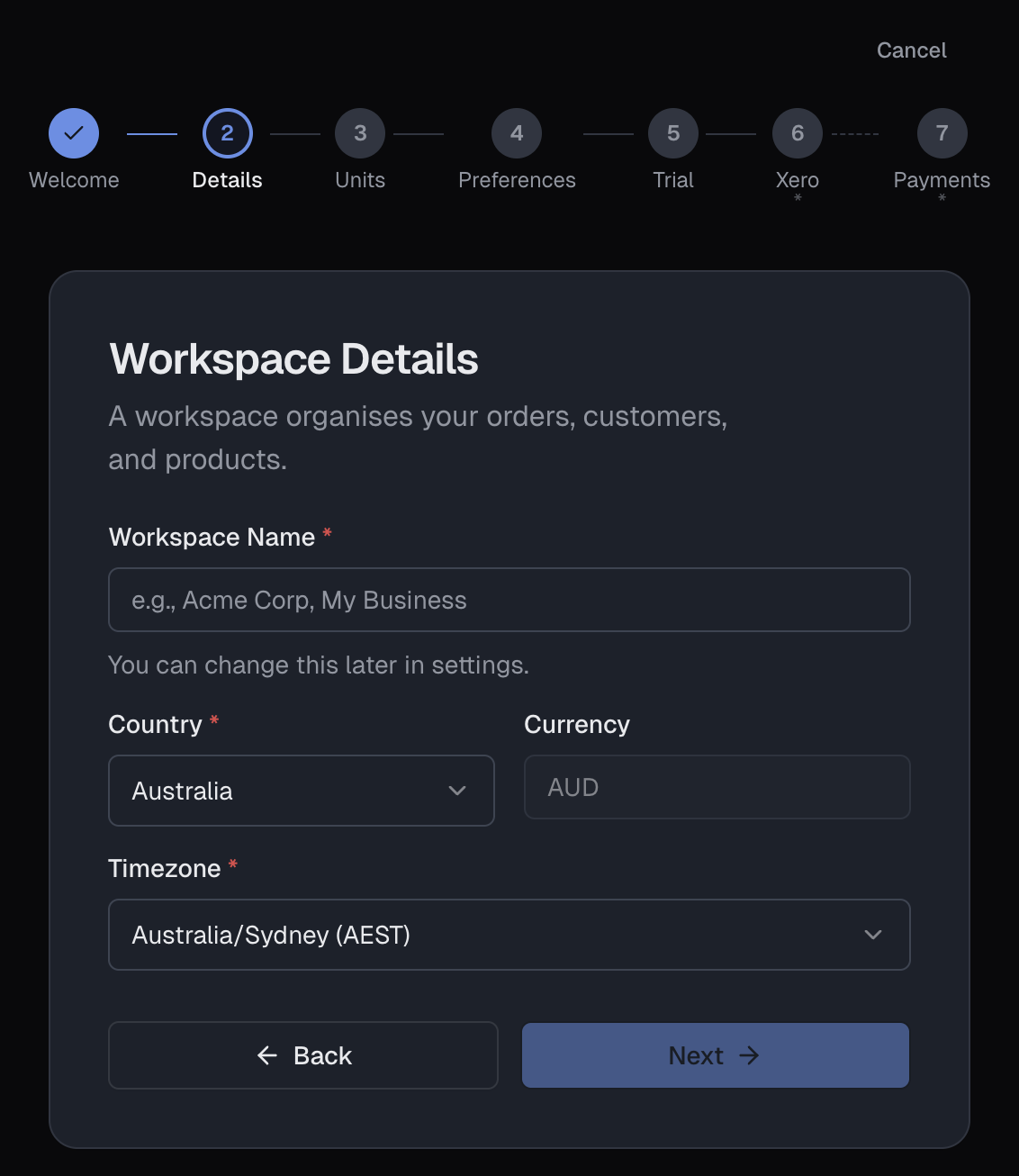
| Field | Required | Notes |
|---|---|---|
| Workspace Name | Yes | Visible to your team only. Can be changed later in Settings. |
| Country | Yes | Australia or New Zealand. Sets tax presets and default currency automatically. |
| Timezone | Yes | Choose from timezones for the selected country. Used for order timestamps and reporting. |
Currency is set automatically:
| Country | Currency |
|---|---|
| Australia | AUD |
| New Zealand | NZD |
Click Next to continue. The workspace is not created yet at this step.
Step 3 — Units
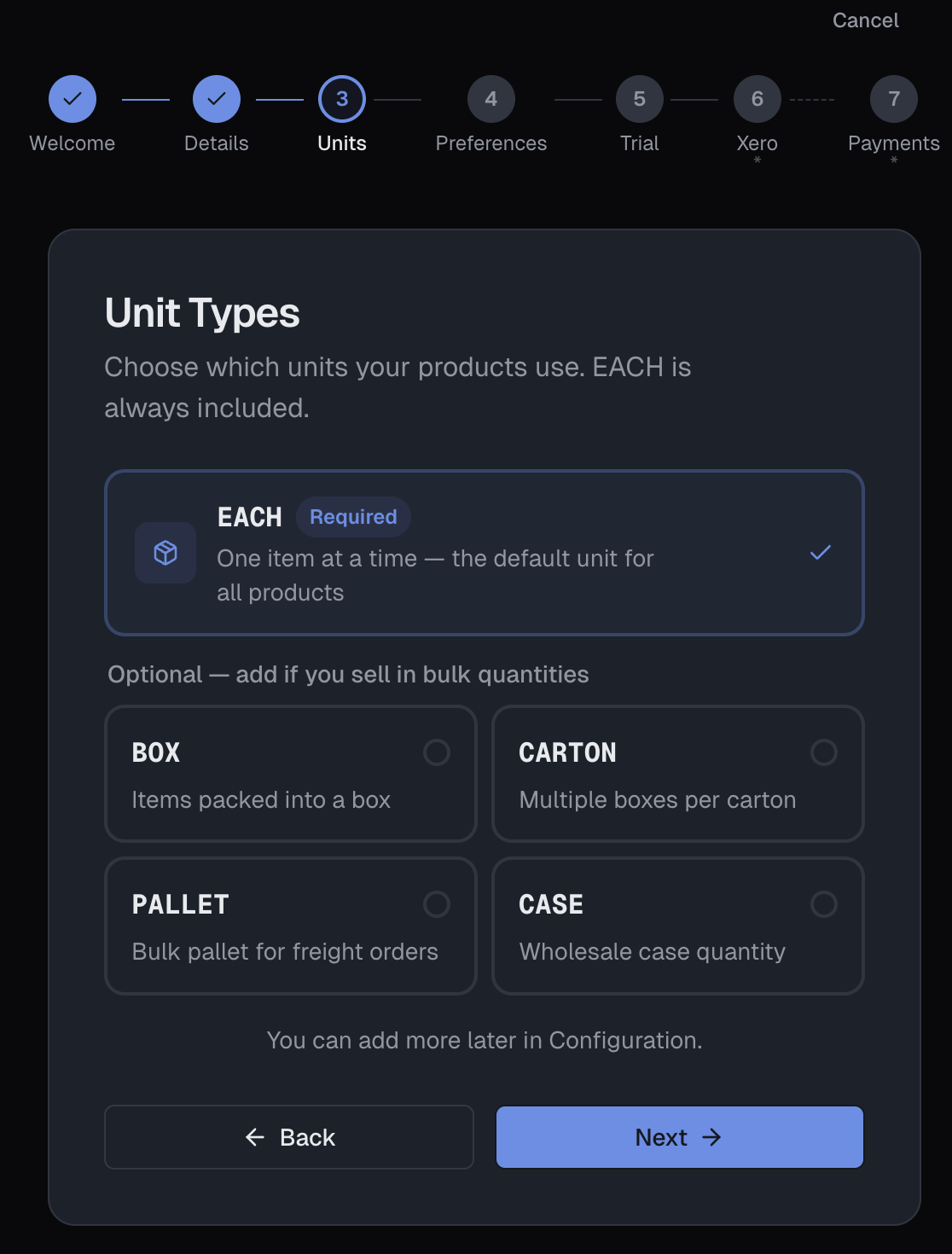
Choose which units of measure your products use. EACH is always included and cannot be removed.
| Unit | Description |
|---|---|
BOX | Items packed into a box |
CARTON | Multiple boxes per carton |
PALLET | Bulk pallet for freight orders |
CASE | Wholesale case quantity |
If you select optional units, multi-unit pricing is automatically enabled in the next step. You can add or remove units later in Configuration → Products.
Step 4 — Preferences
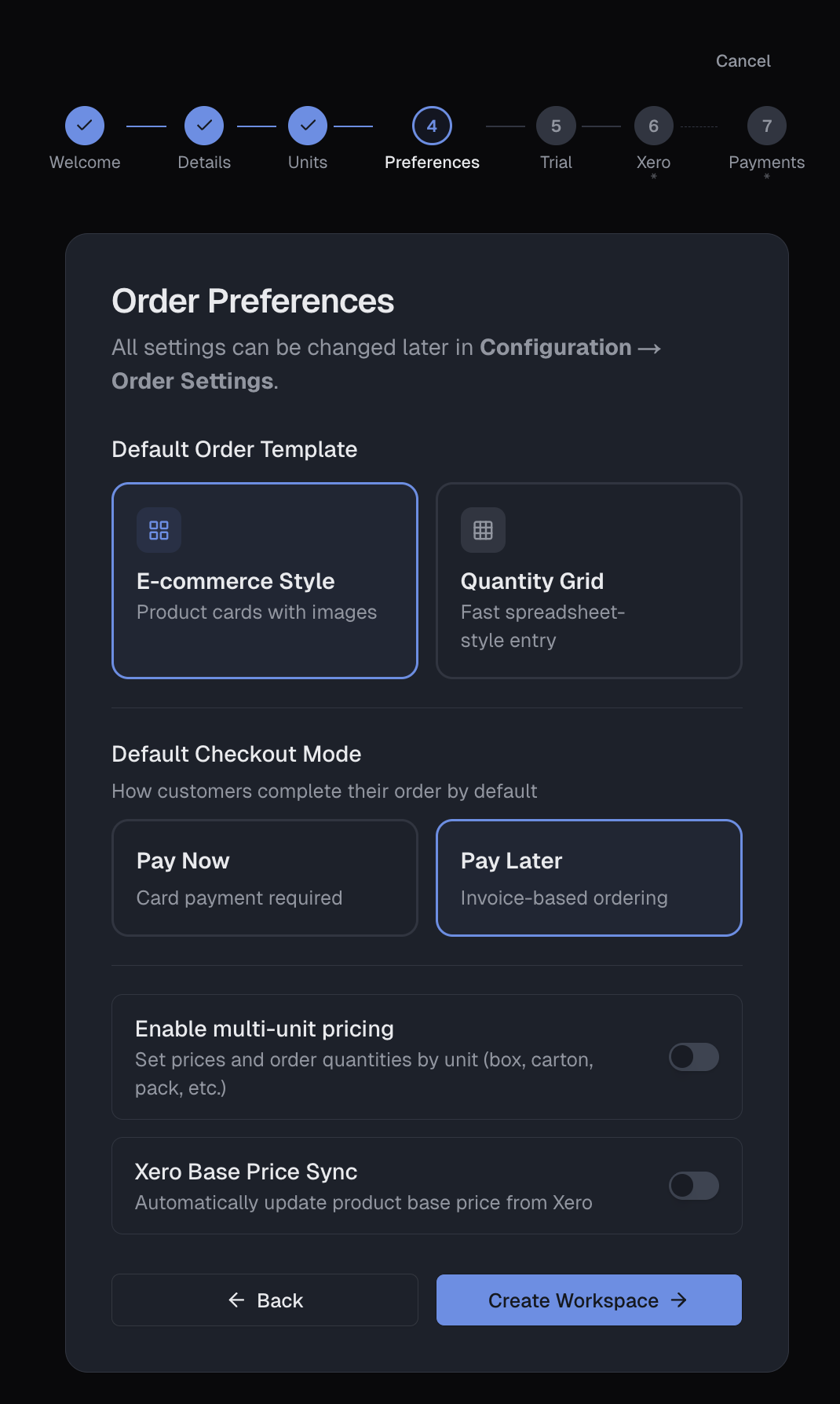
| Setting | Options | Notes |
|---|---|---|
| Default Order Template | E-commerce Style / Quantity Grid | Layout your customers see when placing an order. |
| Default Checkout Mode | Pay Now / Pay Later | Pay Now requires Stripe to be connected. |
| Enable Multi-Unit Pricing | On / Off | Auto-enabled if optional units were selected. |
| Xero Base Price Sync | On / Off | When on, Xero item sync updates each product's base price. |
Step 5 — Create Workspace
Click Create Workspace to complete setup. The workspace, tax presets, business profile, and default freight rule are all created at this point.
What gets created automatically
| Item | Detail |
|---|---|
| Your role | You become Owner with full Admin access. |
| Tax codes | AU: GST 10% / GST Free / Exempt. NZ: GST 15% / Zero Rated / Exempt. |
| Default currency | AUD for Australia, NZD for New Zealand. |
| Business profile | Created with your workspace name as the default business name. |
| Default freight | Flat $0 rule seeded. Update in Settings → Freight. |
After creation, your 14-day free trial starts immediately. No credit card required.