 Orderverse Docs
Invoices
View and manage invoices, track payment status, and filter by date or status.
Overview
Invoices are generated from confirmed orders. Each invoice tracks its own payment status independently from the order. Double-click any row to open the invoice detail panel.
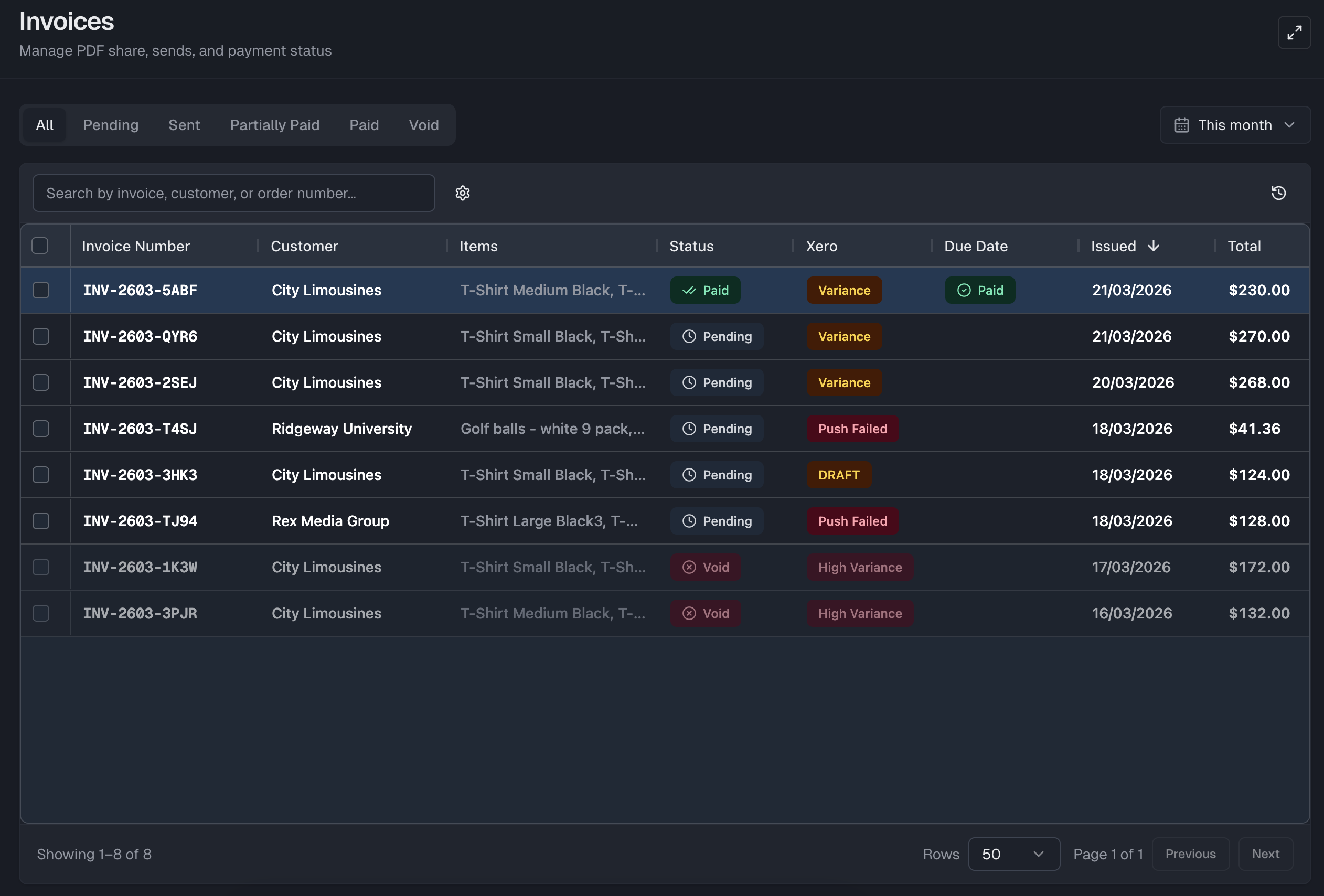
Invoice status
| Status | Description |
|---|---|
| Pending | Invoice created, not yet sent to the customer. |
| Sent | Invoice has been emailed to the customer. |
| Payment Pending | Stripe checkout initiated but payment not yet confirmed. |
| Partially Paid | A payment has been recorded but the balance is not fully cleared. |
| Paid | Invoice is fully paid. |
| Void | Invoice has been cancelled with a reason. |
| Refunded | Full refund has been processed. |
| Partially Refunded | A partial refund has been processed. |
Grid columns
| Column | Description |
|---|---|
| Invoice Number | Auto-generated invoice reference (e.g. INV-XXXXXXXXXXXX). |
| Customer | The customer this invoice belongs to. |
| Items | Summary of the top items on the invoice. |
| Status | Current invoice status. |
| Xero | Xero sync status for this invoice (if Xero is connected). |
| Due Date | Payment due date, shown with overdue highlighting when past due. |
| Issued | Date the invoice was generated. |
| Total | Invoice total. |
| Balance Due | Outstanding amount remaining. |
| Actions | Inline actions: Send, Send Checkout Link, Mark Paid, Void. |
Filtering invoices
- Status filter — Show invoices by one or more statuses.
- Date range — Filter by issue date using a preset or custom range.
- Search — Find invoices by invoice number or customer name.
Due date
The due date is set when the invoice is generated. It is shown in the grid and in the detail panel header. When the due date has passed and the invoice is still unpaid, the due date badge turns red.