 Orderverse Docs
Product Variants
Group colour, size, or model choices under one product while each combination keeps its own SKU, price, stock, and image.
Overview
Use Product Variants when buyers should choose from options such as colour, size, or model on one product page. Each option combination becomes a separate sellable SKU with its own price, stock, status, and image.
Product Families are created and managed from Products. There is no separate Product Families menu.
The standard setup flow is:
- Open an existing product and click Add variants.
- Create the product family draft.
- Add options and choices.
- Review and save the generated Variant SKUs.
- Check shared Product Master settings.
- Publish the family.
Key terms
| Term | Meaning |
|---|---|
| Product Family | The buyer-facing product group that stores its options and Variant SKU setup. |
| Product Master | The product that manages shared details and the Xero Item connection. It is not sold directly after real Variant SKUs are saved. |
| Variant SKU | A sellable option combination, such as Blue / Large. Orders, prices, and Variant stock use this SKU. |
| Option | A choice category such as Colour, Size, or Model. |
| Choice | A value inside an option, such as Blue, Large, or 2026 Model. |
| Buyer control | How choices appear to buyers: Text buttons or Colour swatches. |
Enable Product Variants
- Go to Configuration → Products.
- Find the Product Variants card.
- Turn on Enable product families.
- Click Manage products, or open Products from the sidebar.
If Product Variants is turned off later, saved family data is retained but becomes read-only and is hidden from the buyer portal.
See Products & UoM settings for workspace-level product settings.
Understand the Products views
The Products page has two catalogue views:
| View | Use it for |
|---|---|
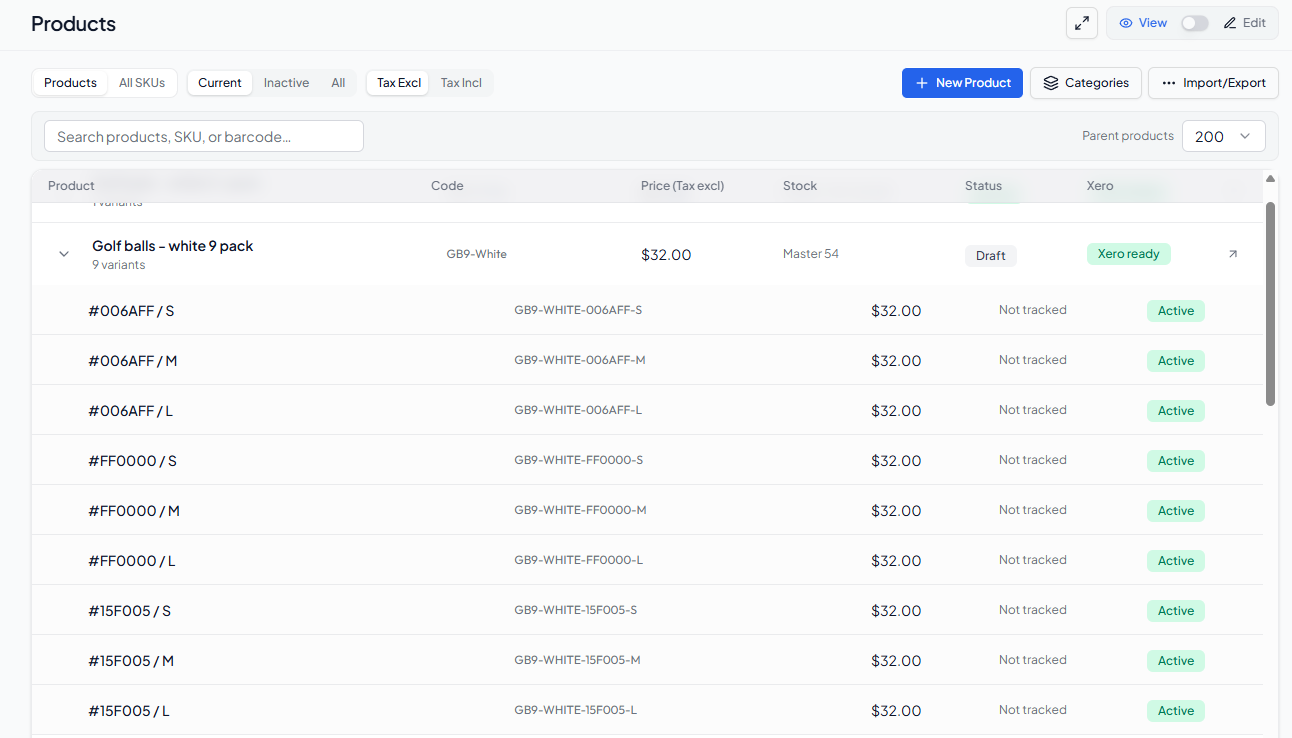
| Products | Buyer-facing catalogue management. A Product Family appears as one parent row that can be expanded to show its Variant SKUs. |
| All SKUs | Warehouse and accounting work. Search individual standalone products and Variant SKUs together. |
In the Products view, use Current for active products and active or draft families. Use Inactive for inactive products and archived or dissolved families.
The Variant count on a family row includes linked Variants even when a Variant is currently inactive. Expand the row to check each SKU, price, stock, and status. When a Variant label contains a HEX colour code, the row also shows the actual colour swatch so you do not have to identify the colour from its code alone.
Create a Product Family draft
Before starting, make sure the source product is not a Bundle and is not already linked to another active, draft, or archived family.
- Open Products.
- Open the product that should become the Product Master.
- Click Add variants.
- Review or edit the Product group name.
- Click Create product family.
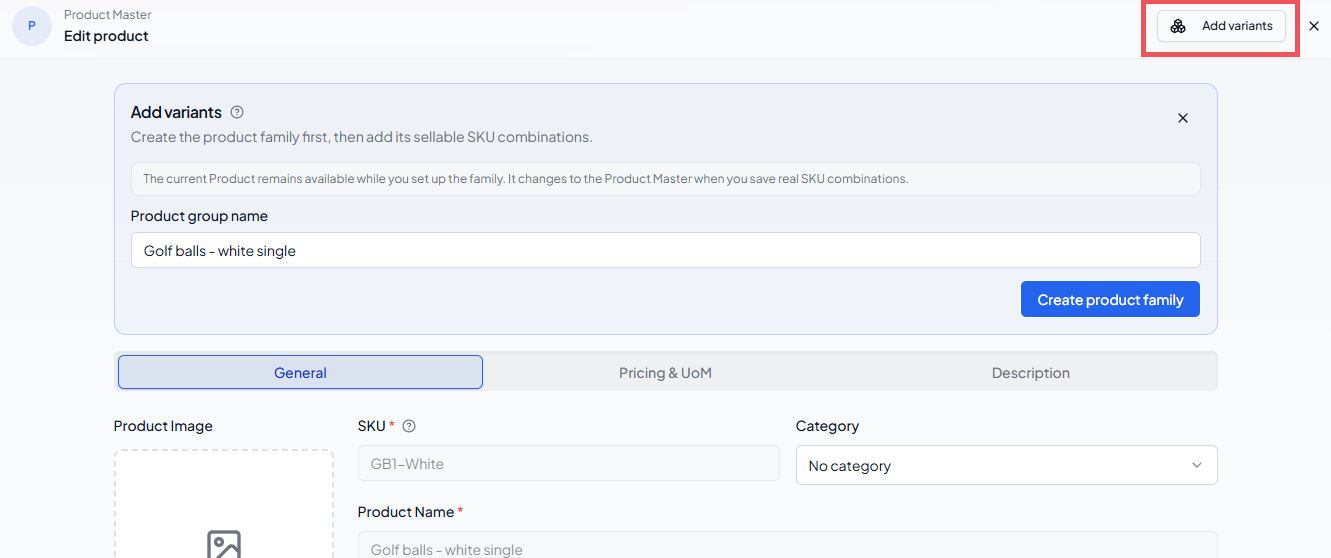
The family opens in Options & Variants as a draft with no Variant SKUs. At this stage:
- the original product remains available until you save real SKU combinations;
- no temporary Default Variant or
-V1SKU is created; - existing prices, stock, UOMs, images, and Xero links are retained; and
- the family cannot be published until it has at least one Active Variant.
You only enter the buyer-facing group name. Orderverse manages the internal family identifier automatically.
If the product already belongs to a family
Orderverse does not create a duplicate family.
- Open the existing family if it is Active or Draft.
- Use Restore Family if the family is Archived.
- If the old family must be ended, archive it and use Make Master Standalone before starting a new family.
Add options and choices
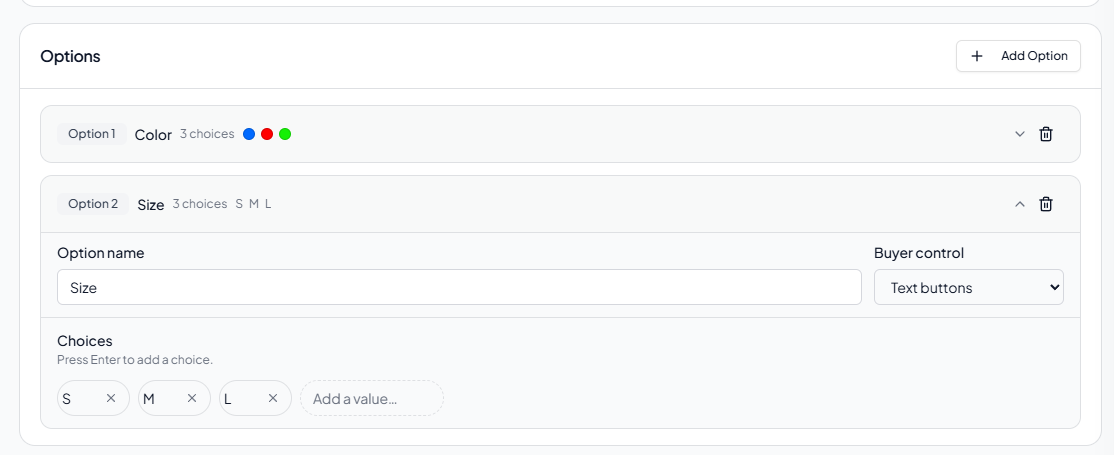
- In Options & Variants, click Add Option.
- Enter an Option name, such as Colour or Size.
- Select a Buyer control.
- Add the choices buyers can select.
Text buttons
Use Text buttons for values such as Small, Medium, Large, or a model name.
- Type a value in the choice field.
- Press
Enterto add it as a choice chip. - Use the remove icon on a chip to delete that choice.
Colour swatches
Use Colour swatches for colour choices.
- Select Colour swatches under Buyer control.
- Click Choose colour.
- Pick a colour in the selector.
The colour is added immediately as a choice chip. There is no separate Add or Confirm button after selecting it. One picker opening creates at most one chip. If you move through several colours before closing the selector, Orderverse updates that chip instead of creating more. Reopen Choose colour to add the next colour.
Change a Buyer control
Changing an option between Text buttons and Colour swatches removes its existing choices. If choices already exist, Orderverse shows a confirmation with the number of affected choices before continuing.
Remove an option or choice
If existing Variants use an option or choice, the confirmation shows how many family memberships will be affected. Continuing archives those memberships; it does not delete the underlying SKU products or their order history.
Review generated Variants
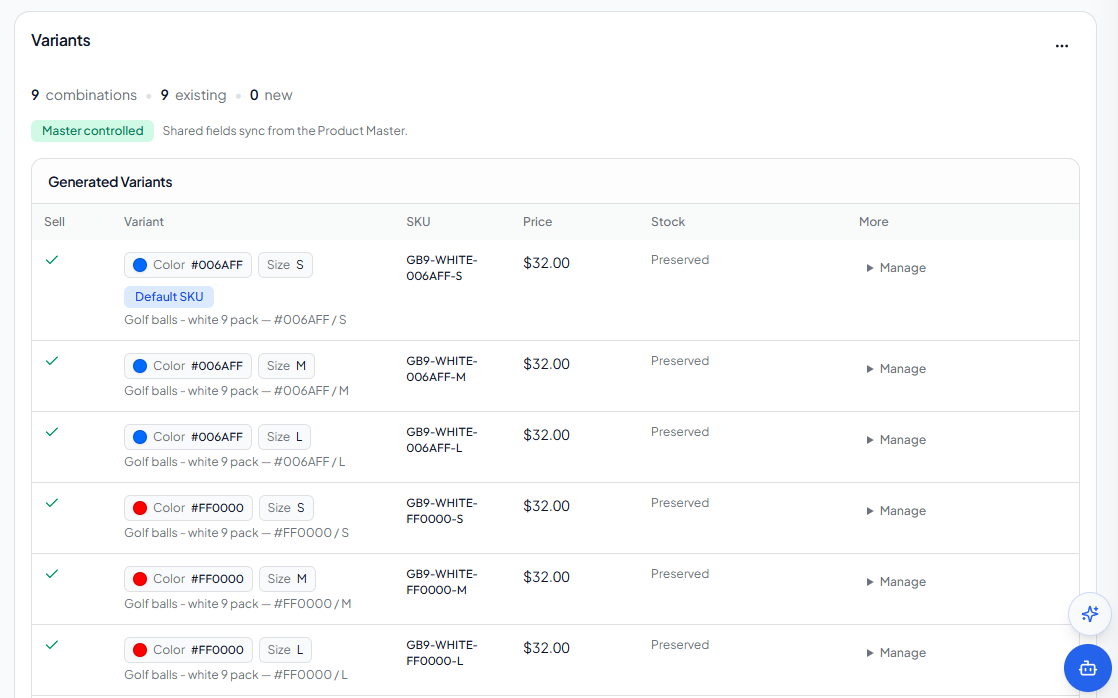
Options and choices automatically generate the possible combinations. The summary above the matrix shows:
| Summary | Meaning |
|---|---|
| combinations | All combinations produced by the current options. |
| existing | Variant SKUs already saved in this family. |
| new | New Variant SKUs included in the next save. |
| excluded | New combinations that will not be created. |
| errors | Issues that must be resolved before saving. |
The Product Master is not shown in Generated Variants because it is not a sellable Variant SKU.
Apply defaults to new Variants
Bulk defaults appears only when there are new combinations.
- Set the starting price and inventory values.
- Click Apply to new variants.
- Edit any Variant that needs different values.
Bulk defaults affect new rows only. Existing Variant values are preserved.
Review each row
| Field | What to check |
|---|---|
| Sell | Include or exclude a new combination. |
| Variant | Confirm the option choices and colour swatch. |
| SKU | Enter a unique SKU for the Variant. |
| Price | Check the selling price. |
| Stock | Check inventory tracking and the starting quantity. |
| Actions | Select Edit to open the Variant editor. New Variants expose name, image, status, and inventory settings; existing Variants expose Option assignments, status, and Default SKU. |
The Variant editor opens from the right without expanding the table row. Select Apply Changes to stage the edit in the Matrix. This does not save the Family yet. If you close the editor with unapplied changes, Orderverse asks whether to discard them. Removing an existing Variant also requires confirmation and keeps the underlying SKU Product and order history.
Resolve all errors, exclude any combinations you do not want to create, then click Save Options & Variants.
After the first real Variant combination is saved, the original product becomes the Product Master and is no longer sold directly. Buyers order the Variant SKU and its UOM instead.
The desktop table is recommended for editing many Variants. On smaller screens, Variants are shown as cards for easier review.
Manage shared settings
Open Overview to manage the Product Master and decide how shared fields are applied to Variants.
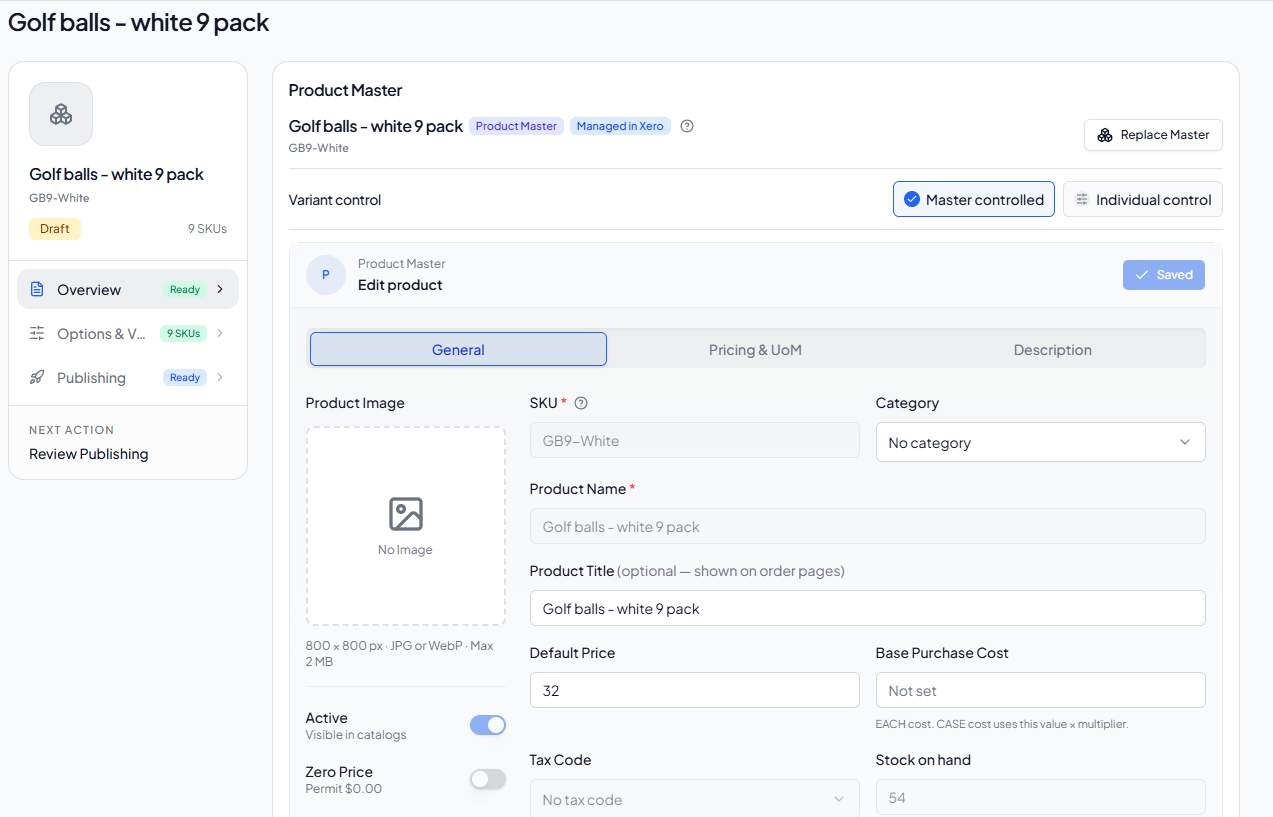
Product Master
The Product Master editor contains:
- General — image, SKU, product name, product title, category, and status
- Pricing & UoM — default price, purchase cost, and selling units
- Description — buyer-facing product description
Variant control
| Mode | Use it when | Behaviour |
|---|---|---|
| Master controlled | Recommended for most families. | Shared fields are synchronised from the Product Master. |
| Individual control | Variants genuinely need different shared details. | Edit shared fields separately on each Variant SKU. |
Shared fields include the product name and title, category, default price, purchase cost, tax, and UOM settings. Variant SKU, local stock, Variant image, barcode, and package details remain Variant-specific.
Switching to Individual control keeps the current Variant values. Switching back to Master controlled can replace shared Variant values, so review the affected Variant and UOM counts in the confirmation before continuing.
Images, pricing, and stock
Image priority
The buyer-facing image is selected in this order:
- image assigned directly to the Variant;
- image assigned to its option choice; then
- Product Master image.
Use the Product Master image when all Variants can share one image. Add a choice or Variant image when buyers need to see a specific colour or model.
Pricing
- Master controlled can apply the Product Master's price and UOM settings.
- Individual control allows Variant-specific prices and UOMs.
- Orders and promotions target the actual Variant SKU and UOM, not the Product Master.
Stock
- Turn on Track stock for a Variant when Orderverse should manage its local quantity.
- A Variant without inventory tracking shows Not tracked.
- When Xero owns Product Master inventory, Master stock can act as a family-wide availability gate while local Variant stock remains Variant-specific.
Publish a family
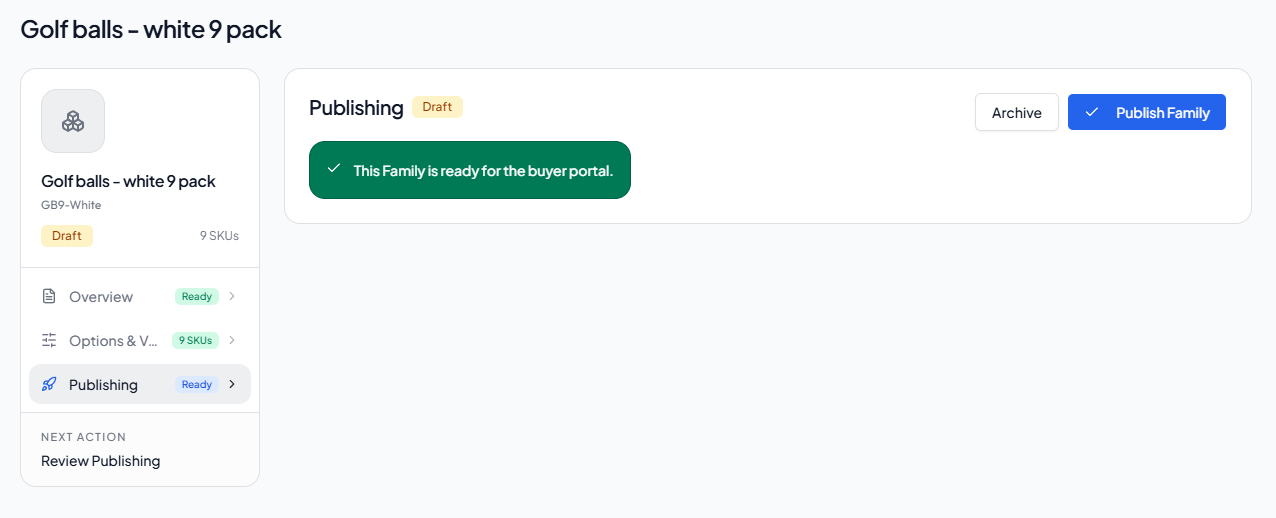
Open Publishing to review readiness. A family normally needs:
- a Product Master;
- at least one Active Variant;
- one complete, unique option combination for each Active Variant;
- a non-empty, unique SKU for each Variant;
- valid price, UOM, tax, and zero-price settings; and
- a ready Xero mapping when your workspace requires one.
When the readiness message confirms the family is ready, click Publish Family.
| Family status | Meaning |
|---|---|
| Draft | Still being configured and hidden from the buyer portal. |
| Active | Published and available to the buyer portal. |
| Archived | Retained as a read-only family that can be restored. |
| Dissolved | The Product Master was returned to Products as a standalone product. The old family is history and cannot be restored. |
Archive or restore a family
Archive
- Open Publishing.
- Click Archive.
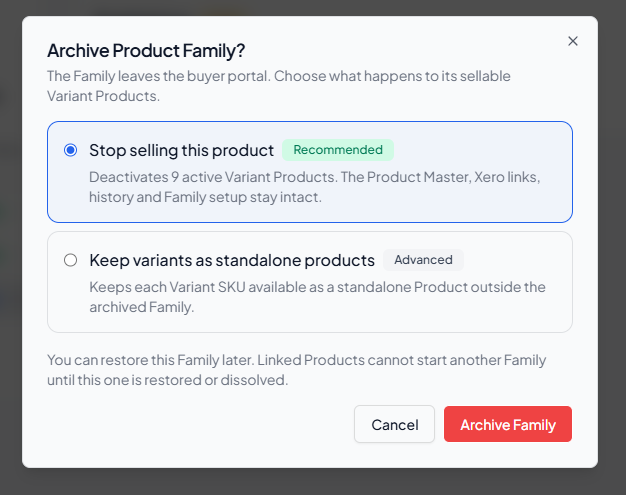
- In Archive Product Family?, choose what should happen to its Variants.
- Review the affected count and confirm.
| Option | Result |
|---|---|
| Stop selling this product | Recommended. Deactivates the Variants that are currently Active while keeping the Product Master, Xero links, setup, and history. |
| Keep variants as standalone products | Keeps current Variant statuses and allows Active Variants to remain available as standalone products. Their archived family relationship is retained. |
Variants that were already Inactive before archiving are not automatically activated during a restore.
Restore Family
Open the Archived family's Publishing page and click Restore Family. Orderverse reuses the same Product Master, options, Variant memberships, and Xero connection. Only Variants deactivated by the Archive action are restored.
Archived family settings are read-only until the family is restored. Restore the existing family instead of creating a duplicate so its options, links, and order history remain connected.
Make Master Standalone
Use Make Master Standalone only when an Archived family should be ended and the Product Master should return to Products as an Active standalone product.
The default option deactivates the old Variants so only the Product Master is Active. The advanced option keeps each Variant's current status, which can leave Active Variants available as standalone products.
After confirmation, the family becomes Dissolved and cannot be restored. Its history is retained. The standalone Product Master can later use Add variants to start a new family.
Xero behaviour
Product Families use one Xero Item through the Product Master. Orderverse does not create a separate Xero Item for every Variant SKU.
This lets Xero stay simple while Orderverse keeps the operational detail:
| Data | Stored in Orderverse | Sent or linked to Xero |
|---|---|---|
| Xero Item | Product Master mapping | One common Xero Item Code for the family |
| Variant SKU | Each Variant Product | Included in the line description |
| Option choices | Each Variant membership | Included in the line description |
| Price and customer price | Variant SKU + UOM pricing | Sent as the invoice line unit amount |
| Inventory | Individual Variant SKU stock | Managed in Orderverse, not split into separate Xero Items |
| UOM, packaging, barcode | Variant SKU UOM rows | Kept in Orderverse for ordering and warehouse use |
For example, the buyer may order:
Drill Bit → 8mm → 120mm → Black
Variant SKU: DB-8-120-BLK
In Xero, that line can still use the Product Master Item Code, such as:
Item Code: DRILL-BIT
Description: Drill Bit - 8mm / 120mm / Black [DB-8-120-BLK]
The local order and invoice retain the selected Variant SKU and UOM. When the invoice is pushed to Xero, the line description snapshot is used so the exact specification remains visible even though the Xero Item Code is shared.
The default description template is:
{familyName} - {optionSummary} [{variantSku}]
where:
| Placeholder | Meaning |
|---|---|
{familyName} | Product Family name, such as Drill Bit |
{optionSummary} | Selected Variant choices, such as 8mm / 120mm / Black |
{variantSku} | The specific Variant SKU ordered |
Use this model when Xero should report at the broader product family level, but sales, stock control, and customer ordering need exact Variant-level detail.
When Xero Items sync owns a Product, fields such as SKU, product name, price, tax, or stock can be read-only. If the Xero connection is unavailable or Items sync is paused, reconnect or resume sync. Change the Item Code in Xero first, then sync Items again.
See Xero Integration Overview and Sync Setup for connection and Items sync instructions.
Limits and rules
| Rule | Limit or behaviour |
|---|---|
| Options | Maximum 3 per family. |
| Choices | Maximum 50 per option. |
| Active Variants | Maximum 100 per family. |
| Option combinations | Every Active Variant needs one complete, unique combination. |
| SKUs | Must be unique within the workspace. |
| Product Master | Never appears as a sellable row in Generated Variants. |
| Bundles | A Bundle cannot also be a Product Master or Variant SKU. |
| Draft family | Can have no Variants, but cannot be published. |
| Archived family | Read-only until restored. |
| Dissolved family | Retained as history and cannot be restored. |
Troubleshooting
Add variants is not available
Check that:
- Configuration → Products → Product Variants is enabled;
- the product is not a Bundle;
- the product is not already linked to an Active, Draft, or Archived family; and
- the Products page is in editable mode.
The product is already used by a family
Open the existing family instead of creating another one. If it is Archived, use Restore Family. To end the old structure, use Make Master Standalone from the Archived family's Publishing page.
The Variant matrix will not save
Check for:
- missing or duplicate SKUs;
- incomplete or duplicate option combinations;
- more than 100 planned Active Variants;
- a zero price without zero-price permission; or
- an unresolved existing SKU marked Choose options.
The Product Master is missing from Generated Variants
This is expected. The Product Master manages shared details and the Xero Item. Only sellable Variant SKUs appear in Generated Variants.
The family has zero Variants
This is a normal draft state. Add options and choices, then click Save Options & Variants. The original product remains available until the first real Variant combination is saved.
Choose options appears on an existing row
This is a recovery state for older data where an existing SKU does not have a complete option combination. Select one choice for every option, make sure the combination is unique, and save again.
A Product Master field is read-only
Xero Items sync may own that field. Check the help icon, reconnect Xero if needed, and resume Items sync. Change Xero-owned Item Codes in Xero before syncing again.