 Orderverse Docs
Orders
View and manage incoming orders, filter by status, and track new order notifications.
Overview
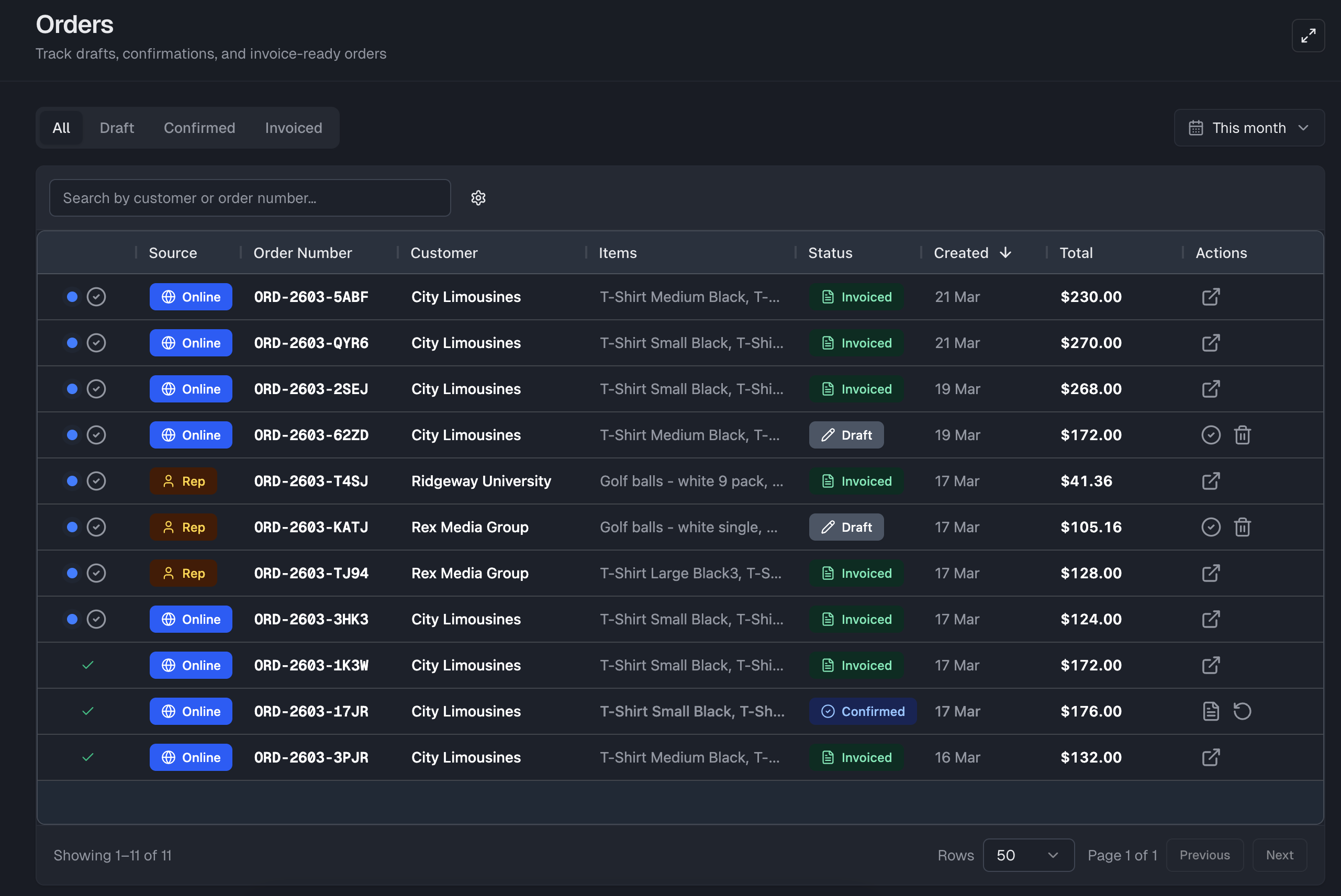
The Orders page lists all orders received in your workspace — both online orders placed by customers through their order link and manual orders entered by your team. Double-click any row to open the order detail panel.
Order status
Every order moves through a fixed lifecycle:
| Status | Description |
|---|---|
| Draft | Order has been received or created but not yet confirmed. Editable. |
| Confirmed | Order has been reviewed and confirmed. Locked — cannot be edited. |
| Invoiced | An invoice has been generated from this order. |
Order source
| Source | Description |
|---|---|
| From Order Link | Order placed by the customer through their unique order link. |
| Manual Entry | Order created directly by an admin in the dashboard. |
| Sales Rep | Order entered on behalf of a customer by a sales rep. |
Grid columns
| Column | Description |
|---|---|
| Checkbox | Select one or more orders for batch actions. |
| New | Highlights orders that have not yet been reviewed. Click the check icon to mark as reviewed. |
| Source | Indicates how the order was placed (Online / Manual / Sales Rep). |
| Order Number | Auto-generated order reference. |
| Customer | The customer who placed the order. |
| Delivery Date | The saved delivery date and route, when available. Orders needing confirmation show Needs delivery review. |
| Items | Summary of the top items in the order. |
| Status | Current order status (Draft / Confirmed / Invoiced). |
| Created | Date the order was received or created. |
| Total | Order total including freight. |
| Actions | Inline actions: Confirm, Generate Invoice, Back to Draft, Delete, Open Invoice. |
Filtering orders
Use the toolbar to narrow the order list:
- Status filter — Show only Draft, Confirmed, or Invoiced orders (select multiple).
- Date range — Filter by creation date using a preset (Today, Last 7 days, This month, etc.) or a custom date range.
- Search — Find orders by order number or customer name.
Batch Actions
You can select multiple orders and act on them at once.
Selecting orders
Tick the checkbox on the left of each row to select it. Row click and double-click continue to work as normal — checkbox selection is independent.
A selection bar appears below the toolbar showing the number of selected
orders and a breakdown by status (e.g. Draft 7 · Confirmed 5).
How action counts work
Each action button in the selection bar shows the number of orders it will actually act on — not the total number selected. Only orders in the eligible status are processed; the rest are skipped silently.
Example: 12 orders selected (7 Draft, 5 Confirmed) →
Confirm (7) · Generate Invoice (5) · Back to Draft (5) · Delete (7)
You do not need to split your selection by status before running an action.
Available batch actions
| Action | Eligible status | Notes |
|---|---|---|
| Confirm | Draft | |
| Generate Invoice | Confirmed | Requires invoice generation permission. |
| Back to Draft | Confirmed | Requires revert permission. |
| Delete | Draft | Requires delete permission. Confirmation dialog shown. |
Open Invoice is not available as a batch action — use the inline row action to open an individual invoice.
Results
After a batch action runs:
- Successful orders are removed from the selection automatically.
- Failed orders remain selected so you can review and retry.
- A toast summary shows how many succeeded and how many failed.
New order notifications
When a customer places an order online, it appears in the grid with a New indicator. The indicator is cleared when you click the check icon in the row or open the order detail panel.
Real-time notifications appear in the notification bell in the header when a new online order is received.
For delivery dates that need confirmation, use Delivery Reviews.