 Orderverse Docs
Members
Manage team access — view members, invite new users, revoke invites, transfer ownership, and remove members.
Overview
The Members tab shows everyone with access to your workspace and lets you manage their roles and permissions.
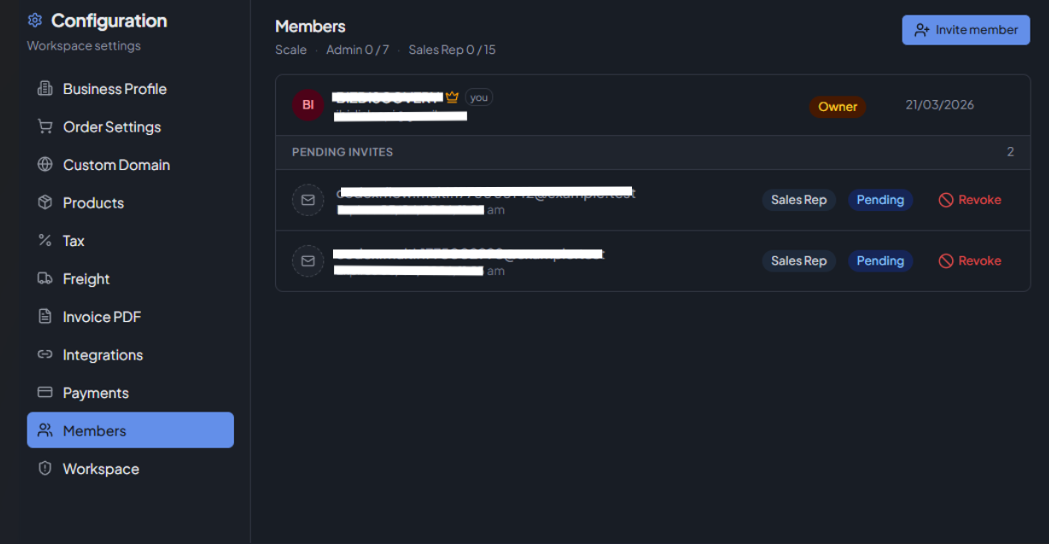
Only Admins and Owners can view this tab. Only the Owner can invite members, revoke invites, remove members, and transfer ownership.
During an active trial, team invites are disabled. Activate a paid plan first, then invite Admins or Sales Reps.
Roles
| Role | Description |
|---|---|
| Owner | Full control including billing and workspace deletion. Counts as an Admin seat. |
| Admin | Access to all dashboard features and configuration. |
| Sales Rep | Can create orders on behalf of customers. Cannot access configuration. |
Seat limits
Seat availability depends on the workspace plan:
- Admin seats — count active Admin members only. The Owner does not consume an Admin seat.
- Sales Rep seats — tracked separately from admin seats.
The current seat usage is shown at the top of the Members tab.
Member table
| Column | Description |
|---|---|
| The member's email address. Owner is marked with a badge. | |
| Name | The member's display name. |
| Role | Owner (Admin), Admin, or Sales Rep. |
| Status | Active or Inactive. |
| Joined | Date the member accepted their invite. |
| Actions | Available actions for this member (see below). |
Member actions
Available actions depend on your role and the member's role:
| Action | Who can use it | Description |
|---|---|---|
| Transfer Ownership | Owner only | Transfers workspace ownership to another active admin. You remain as Admin. |
| Remove Member | Owner (for others), any member (leave for self) | Removes the member from the workspace. Active members only. |
| Leave Workspace | Any non-owner member | Removes yourself from the workspace. |
Inviting members
Click Invite (top right) to open the invite dialog:
| Field | Description |
|---|---|
| The email address to invite. | |
| Role | Admin or Sales Rep. |
An email invitation is sent to the address. The invite expires after a set period if not accepted.
Inviting an Admin or Sales Rep uses a seat from the plan's allocation once the invite is accepted. Pending invites are warning-only and do not reserve a seat ahead of time.
On a trial workspace, the invite action is disabled and the Members tab shows a note that team invites unlock after plan activation.
Pending invites
Below the members table, all open invitations are listed:
| Field | Description |
|---|---|
| Who the invite was sent to. | |
| Role | The role they will receive on acceptance. |
| Expires | When the invite link expires. |
| Status | Always Pending while waiting for acceptance. |
Click Revoke to cancel a pending invite before it is accepted.
Transferring ownership
Ownership can only be transferred to an active Admin. If the target member is a Sales Rep, they are automatically promoted to Admin as part of the transfer.
Ownership transfer is blocked if it would exceed the plan's admin seat limit.