 Orderverse Docs
Price Groups
Create customer-specific price groups and manage overrides using the pricing grid and bulk formula tools.
Overview
Price Groups let you set different prices for different customers. A customer assigned to a Price Group sees those prices instead of the product default.
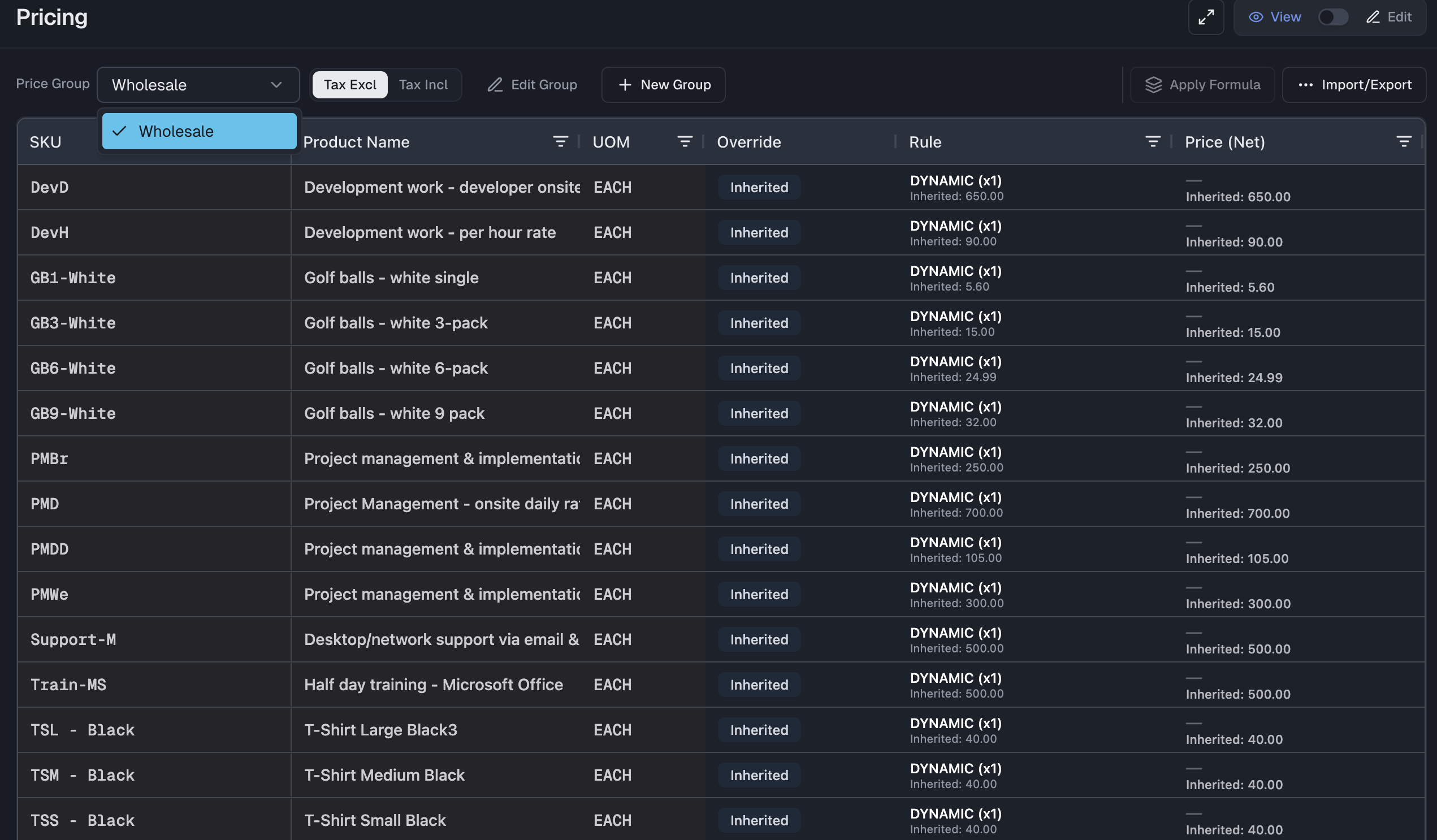
Switch to the Pricing tab at the top of the Products page to manage Price Groups.
How it works
| Layer | Price used |
|---|---|
| No Price Group assigned to customer | Product default price |
| Price Group assigned, cell is blank | Product default price |
| Price Group assigned, cell has a value | Price Group override |
An inactive Price Group is ignored when orders are placed — customers assigned to it fall back to the product default price.
Setting up a Price Group
- Click + New Price Group to create a group and give it a name.
- Select the group from the dropdown — the pricing grid loads all products.
- Enter prices in the Price column for the products you want to override.
- Leave a cell blank to inherit the product default.
The grid columns are:
| Column | Description |
|---|---|
| SKU | Product code (read-only). |
| Product Name | Product name (read-only). |
| UOM | Unit of measure row (read-only). |
| Price | Override price for this group. Blank = use default. |
A price of
0is only valid if the product has Allow Zero Price enabled.
Price macro (bulk formula)
Apply a formula to update many prices at once within a Price Group.
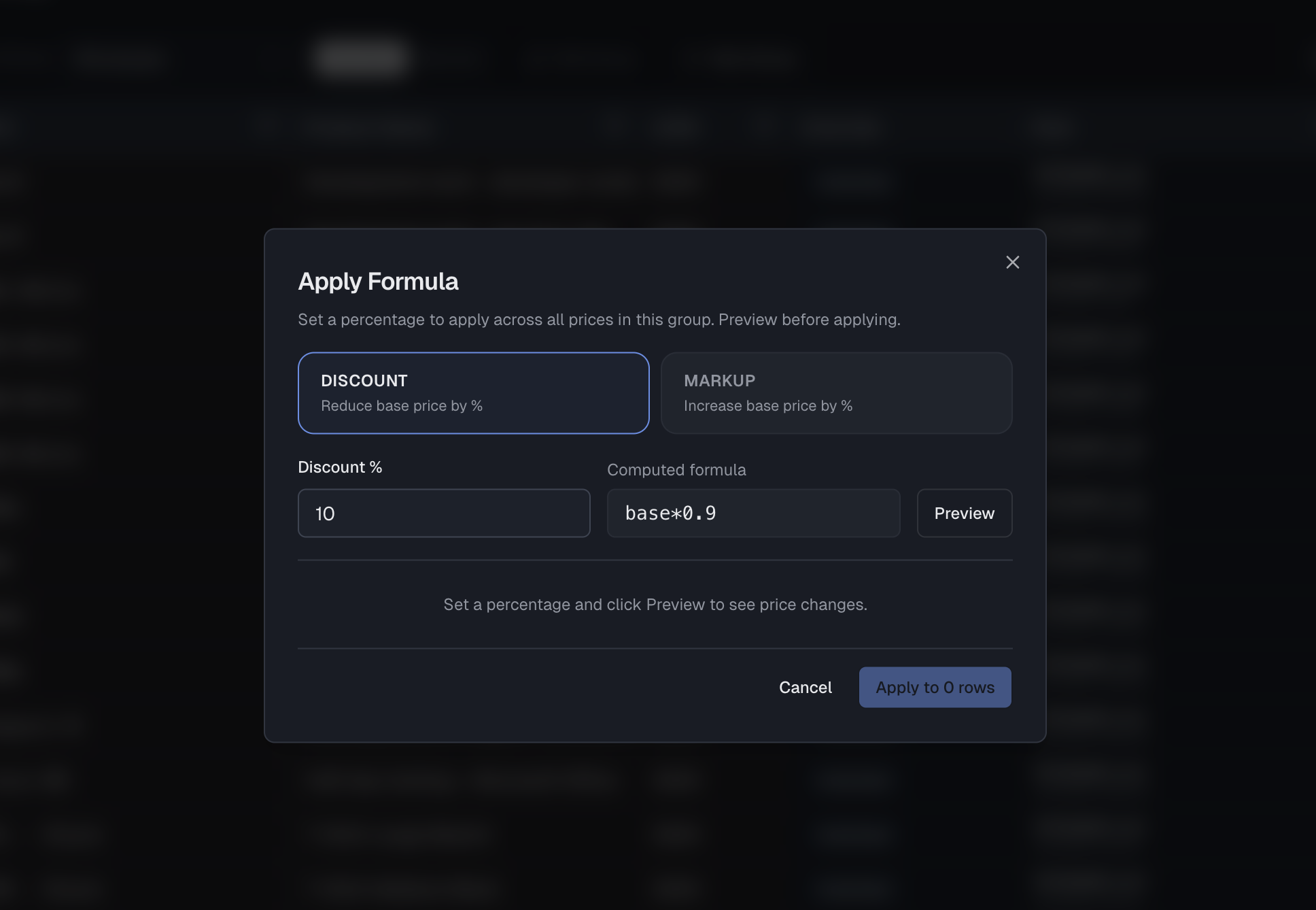
Edit mode required. The macro input and Macro button are disabled in read-only mode. Switch to Edit mode first.
- Switch to Edit mode using the View / Edit toggle in the toolbar.
- Click Apply Formula — this opens the formula input modal.
- Enter a formula in the modal:
| Formula | Effect |
|---|---|
+10% | Increase all prices by 10% |
-5% | Decrease all prices by 5% |
*1.15 | Multiply all prices by 1.15 |
+$2 | Add $2 to all prices |
-$5 | Subtract $5 from all prices |
- Review the before and after prices for every affected row.
- Click Apply Changes to confirm. All changes are recorded in the audit log.
Bulk upload
Price Group prices can be updated via CSV in addition to manual grid editing.
Use Import / Export → Download Template to get the SKU,UOM,Price template,
then upload your file or paste from Excel. Import uses a
Preview → Confirm → Result flow before anything is saved.
See Price Group Import & Export for column details, file limits, and the full error reference.
Assigning a Price Group to a customer
Price Groups are assigned per customer from the Customers page. Open a customer record and select a Price Group in the customer settings.
A customer with no Price Group assigned always sees product default prices.
Audit log
Every change to a Price Group price — whether made via the grid, a macro, bulk upload, or Xero sync — is recorded with the user who made it and the timestamp. Hover over a cell to see the most recent change summary.