 Orderverse Docs
Customer Detail
Edit customer info, configure per-customer pricing, storefront settings, shipping address, and freight overrides.
Opening the detail panel
Double-click any row in the Customers grid to open the detail panel. The panel has five tabs (admins see an additional Activity tab).
General tab
| Field | Notes |
|---|---|
| Customer Name | Required. The display name shown on orders and invoices. |
| Customer Code | Optional internal code. |
| Contact email. | |
| Phone | Contact phone. |
| Contact Person | Name of the contact at this company. |
| Price Group | Assign a Price Group for customer-specific pricing. "Workspace default" uses standard prices. |
| Active | Master status. When off, the order link is blocked and no new orders can be placed. |
| Order Web Blocked | When on, the order link is disabled for this customer regardless of their Xero status. Only editable when the customer is active — disabled when the customer is inactive (the link is already blocked by master status). |
| Order Link | Read-only display of the customer's unique order URL with a copy button. |
When Sync Contacts is active:
- Customer Name, Customer Code, Email, and Active are read-only.
- Phone is read-only only when Phone Type is mapped to a Xero phone field.
- Address is read-only only when Address Type is mapped to a Xero address field.
- Phone and address labels show which Xero field is currently linked, with a shortcut to Configuration → Integrations.
- Local-only settings such as storefront options, freight rules, and internal notes remain editable.
- Order Web Blocked is always locally editable — it is not a Xero-managed field and is never locked by Contacts sync. You can pause a customer's order web access locally even when their status is controlled by Xero.
Storefront tab
Controls how this customer's order portal looks and behaves.
| Setting | Options | Notes |
|---|---|---|
| Order Template | E-commerce Style / Quantity Grid | Overrides the workspace default for this customer only. Leave unset to inherit workspace default. |
| Checkout Policy | Use workspace default / Pay now / Pay later | Pay now requires Stripe to be connected. Falls back to Pay later automatically if Stripe is not ready. |
Tab Visibility controls which portal tabs the customer sees:
| Tab | Options |
|---|---|
| New Arrivals | Inherit workspace / Force show / Force hide |
| Past Orders | Inherit workspace / Force show / Force hide |
| On Sale | Inherit workspace / Force show / Force hide |
Shipping tab
Delivery route — Choose one Assigned route for this customer, or select No route assigned. Your team assigns the route based on the customer's delivery area; it is not inferred from their address. A customer with an assigned route can see the next open date when ordering after Show delivery dates is enabled. Changing the delivery address does not automatically change the route, so check the assignment if the customer moves. See Delivery Routes.
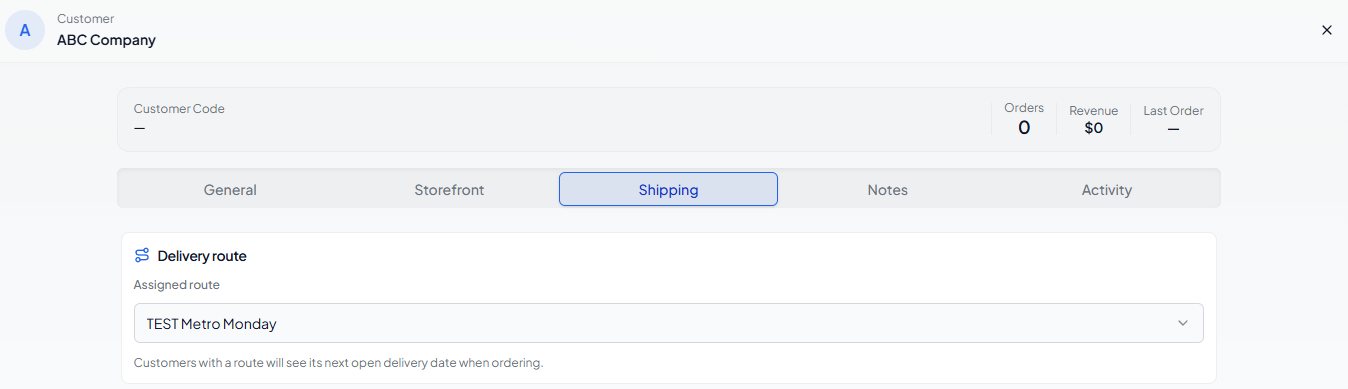
Address — Delivery address for this customer. Fields: Address Line 1, Address Line 2, Suburb/City, State/Region, Postcode, Country. Click Save Address to apply changes.
If Contacts sync owns the address field, these inputs stay visible but read-only. Change the mapping from Configuration → Integrations if you want the address to remain local instead.
Freight — Override the workspace-level freight rule for this customer.
| Mode | Description |
|---|---|
| Use workspace default | Inherits the workspace freight rule. |
| Flat amount | A fixed freight charge applied to every order. |
| Free over threshold | Freight is waived when the order total exceeds the set amount. |
| Manual / TBC | Freight is left blank for manual entry on the invoice. |
You can also set a freight Tax Code for this customer, or leave it as workspace default.
Click Reset to workspace default to remove the customer override.
Notes tab
Internal memo — A free-text field for internal notes about this customer. Only visible to your team — never shown to the customer.
Activity tab
Available to workspace admins. Shows the last 30 days of portal engagement for this customer.
Summary cards
| Card | What it shows |
|---|---|
| Views | Total number of times the customer's order link was opened. |
| Verified | Times the buyer completed a Strict Security Mode challenge. |
| Checkout | Times the buyer reached the checkout screen. |
| Orders | Orders submitted through the order portal. |
14-day trend — A line chart of daily link opens for the past two weeks.
Recent events — A timestamped list of the latest activity milestones, including confirmation screens seen, challenges verified, checkout starts, and orders submitted.
For a workspace-wide view across all customers, see Customer Activity.