 Orderverse Docs
Checkout Flow
How buyers complete an order — contact details, payment options, and the confirmation screen.
Overview
After a buyer adds products and submits their order, they go through a brief checkout. The experience depends on your checkout mode setting.
Contact information
If your workspace collects contact details at checkout, buyers fill in their information before submitting:
| Field | Required |
|---|---|
| Business Name | ✅ |
| Email Address | ✅ |
| Phone Number | ✅ |
| Street Address | ✅ |
| Suburb / City | ✅ |
| State / Province | ✅ |
| Postcode / ZIP | ✅ |
| Address Line 2 | Optional |
| Contact Person | Optional |
If the customer's profile already has address details saved, the fields are pre-filled automatically.
Payment modes
Two payment modes are available:
| Mode | Button shown to buyer | What happens |
|---|---|---|
| Pay Later | Place Order (Pay Later) | Order is created in your dashboard as a draft. You invoice the customer separately. |
| Pay Now | Place Order & Pay Now | Buyer is redirected to Stripe Checkout to pay immediately. |
Fallback priority: Customer override → Workspace default → Pay Later (if Stripe is not connected).
If Stripe is not connected, all orders automatically use Pay Later regardless of your settings.
To set the workspace default, go to Configuration → Order Settings → Checkout Default Mode. To override for a specific customer, go to the customer detail page → Order Settings → Checkout Mode.
After submitting an order
Pay Later flow
The buyer sees a confirmation screen. A confirmation email is sent to the buyer, and a notification is sent to your configured admin email(s).
Pay Now flow (Stripe)
- Buyer is redirected to the Stripe-hosted payment page.
- They enter card details and confirm payment.
- A payment result screen is shown:
| Status | What the buyer sees |
|---|---|
| Processing | Spinner while payment is being verified |
| Confirmed | Order number + confirmation message |
| Cancelled | "No charge was made" + option to return to order |
| Failed | Error message + option to return to order |
Both flows confirm that a confirmation email has been sent.
Freight in checkout
Freight is displayed in the order summary before the buyer submits:
| Freight mode | Shown as |
|---|---|
| Flat rate | Fixed amount |
| Free over threshold | $0 if order qualifies, otherwise the flat rate |
| Manual / TBC | "Freight TBC" — the order total is shown without freight |
Delivery dates at checkout
If Show delivery dates is on and the buyer is ordering delivery on an assigned customer link, checkout shows the Next delivery date and route. The date is the next scheduled route run still open for orders. Switching to Pickup removes the route delivery date from that order.
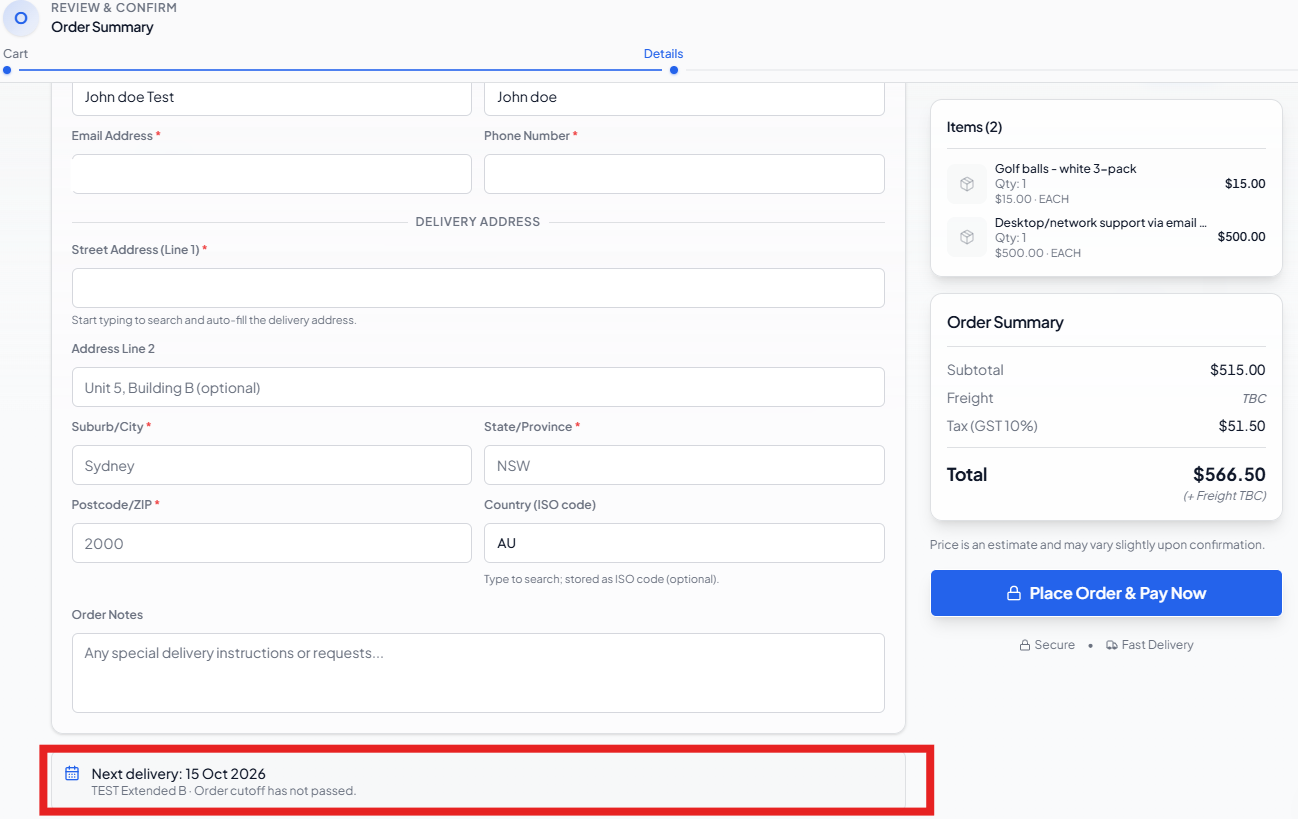
If no date is available, the buyer is asked to choose pickup or contact the supplier to confirm the route. The system checks the date again when the order is submitted; a date that became unavailable cannot be silently reused. The supplier can manage schedules in Delivery Routes.
For a Pay Now order started before the route cut-off, the delivery-date hold can extend up to 30 minutes after that cut-off. A payment completed after the hold may still create a paid order, but its delivery date needs the supplier's confirmation in Delivery Reviews. The payment confirmation itself does not guarantee that the original delivery date remains available.
Double-submit prevention
Once the buyer clicks Place Order, the button is immediately disabled and a loading indicator appears. This prevents duplicate orders from double-clicks or slow connections.
Large order warning
Orders with more than 200 line items trigger a confirmation dialog before submitting. The buyer must confirm they intended to place a large order.