 Orderverse Docs
Adding Products
Set up your product catalogue using the grid, configure pricing, and manage categories.
Overview
The Products page is a spreadsheet-style grid where you add and manage your entire catalogue. Changes are saved automatically — there is no Save button on the grid itself.
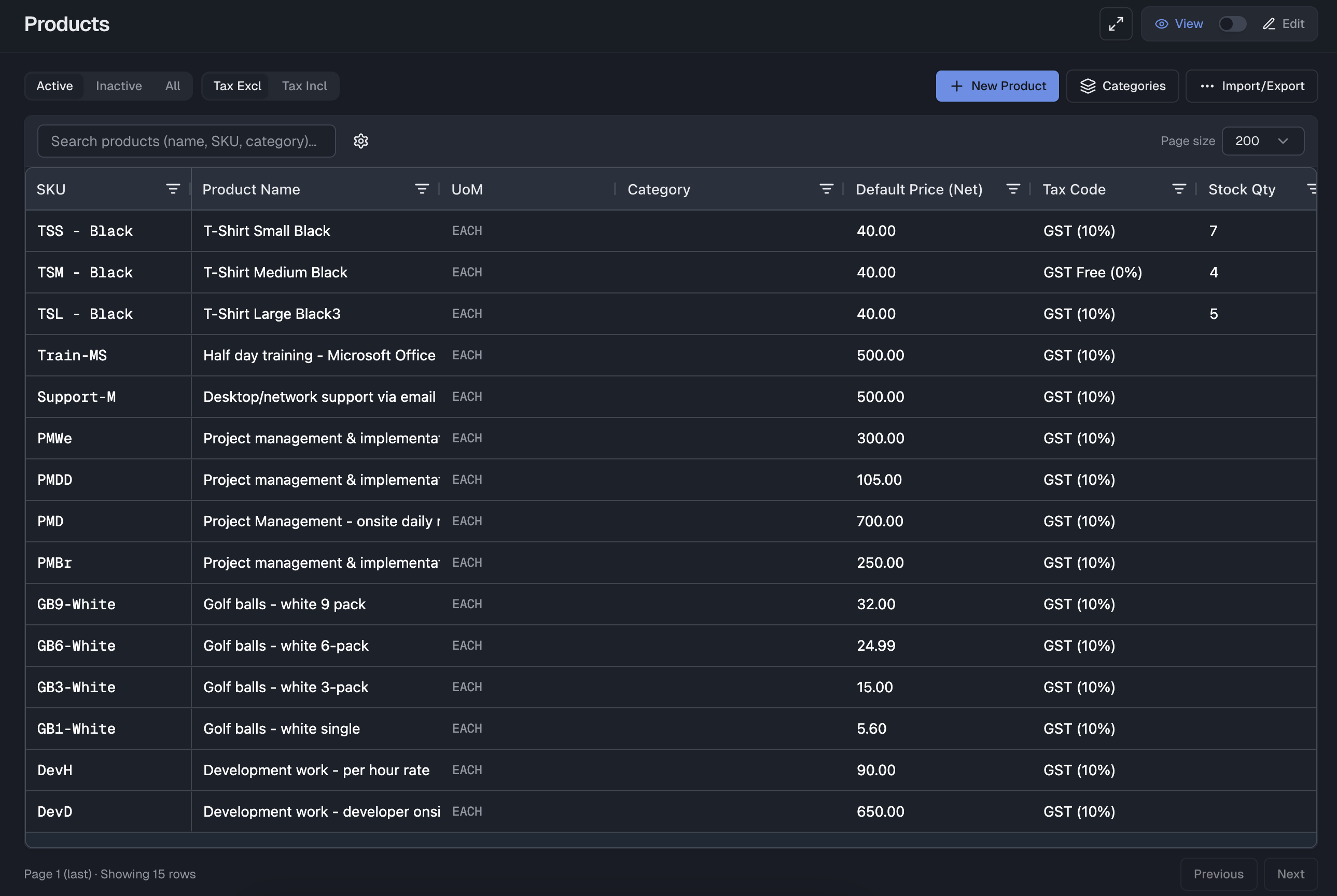
Grid columns
Each row in the grid represents one product. The columns available are:
| Column | Description |
|---|---|
| SKU | Your internal product code. Leave blank to save as a draft. |
| Product Name | The product's primary name. Used as the portal display name unless a custom title is set. |
| UOM | Summary of active units of measure for this product. |
| Category | Optional. Used to filter products in the order portal. |
| Default Price | The base EACH price (excluding tax). |
| Tax Code | The tax rate applied to this product. Inherits from workspace default if left blank. |
| Stock Qty | Current stock on hand. Negative values are allowed. |
| OOS Mode | Out-of-stock behaviour: manual (you control it) or rule (auto by stock qty threshold). |
| Active | Inactive products are hidden from the order portal. |
| Out of Stock | Marks the product as unavailable on the order portal. |
| Zero Price | Allow this product to be ordered at $0. |
You can show or hide optional columns using the Columns button in the toolbar. Column order can be rearranged by dragging.
When Configuration → Integrations → Sync Items is active for a connected Xero workspace, some columns become read-only in the grid:
| Column | Read-only when |
|---|---|
| SKU | Items sync is active |
| Product Name | Items sync is active |
| Tax Code | Items sync is active |
| Stock Qty | Items sync is active |
| Default Price | Items sync is active and Base Price Sync is enabled |
| Category, Active, Out of Stock, Zero Price | Always editable |
Adding a product
- Click + Add row (or press
Enteron the last row) to add a new line. - Type the Product Name — this is the only required field to save a product.
- Fill in SKU, Default Price, and Tax Code as needed.
- The row is saved automatically when you move to another cell or row.
A product without a SKU is saved as a draft. It appears in the grid but will not show on the order portal until a SKU is added.
If Configuration → Integrations → Sync Items is active for a connected Xero workspace, the + New Product button stays visible but opens a short guidance modal instead of the create form. In that mode, create the item in Xero first and then run Sync Items.
Product detail
Double-click any row to open the product detail panel.
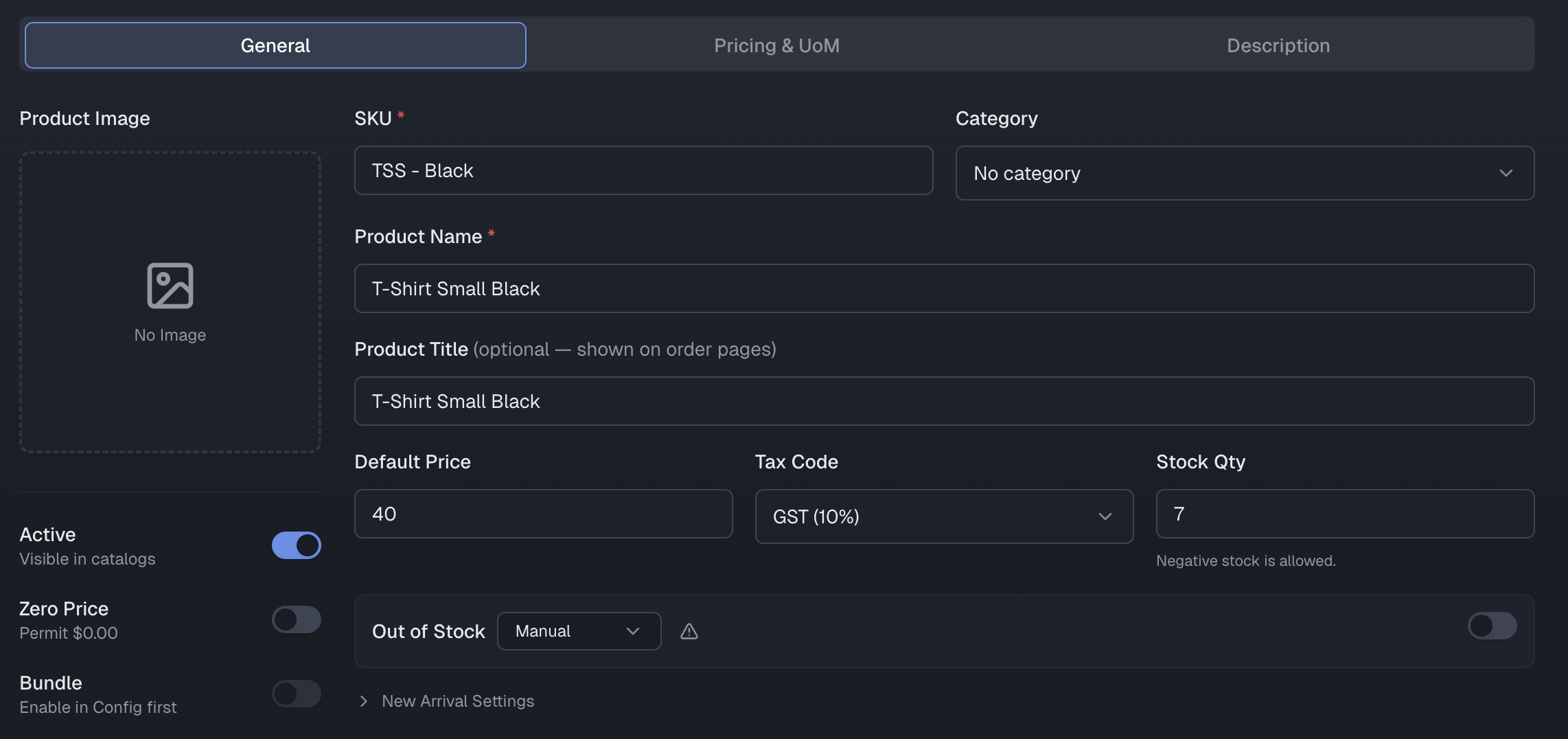
Basic fields
| Field | Notes |
|---|---|
| SKU | Your internal code. Optional but recommended. |
| Product Name | Primary name. Overwritten by Xero sync if connected. |
| Product Title | Custom display name shown on the order portal. If blank, falls back to Product Name. Not synced by Xero. |
| Category | Assign to a category for portal filtering. |
| Tax Code | Applied at line level when an order is placed. |
| Default Price | Base EACH price (ex-tax). |
| Active | Toggles portal visibility. |
| Allow Zero Price | Required to save or order this product at $0. |
Product image
Click the thumbnail on the left side of a row (or in the detail panel) to open the image uploader. Supported formats: JPG, PNG, WebP. Max 3 MB.
Description
The Description tab in the detail panel has a rich text editor. You can add formatted text, bullet lists, links, and inline images.
Save the product first before adding images to the description.
Advanced Pricing (multi-unit)
If multi-unit pricing is enabled for your workspace, toggle Advanced Pricing on in the product detail panel to configure pricing per unit of measure.
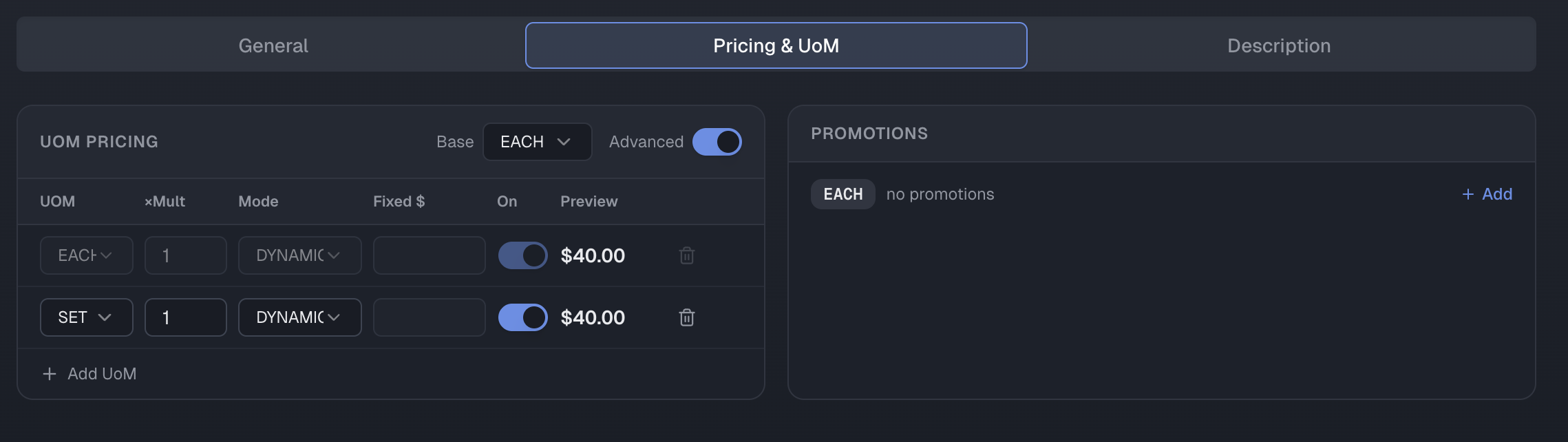
| Column | Description |
|---|---|
| UOM | The unit code (e.g. EACH, BOX, CARTON). |
| Multiplier | How many base units are in one of this unit. |
| Pricing Mode | Dynamic — calculated from base price × multiplier. Fixed — a set price regardless of multiplier. |
| Price | The fixed price (only applies when Pricing Mode is Fixed). |
EACHalways exists and cannot be removed. Its multiplier is always1.
Promotions
Each UoM row can have a promotion attached. Open the promotion panel from the row action menu.
| Type | Description |
|---|---|
| % Discount | Reduces the unit price by a percentage. |
| Fixed Price Override | Replaces the unit price with a specific amount. |
Only one active promotion per UoM is allowed at a time. Overlapping active periods for the same UoM are blocked.
Bundle Products
Toggle Bundle Product on in the product detail panel to define a product as a set of component items.
- Select child products and specify quantities.
- Use Calculate From Items to preview the combined price (not saved until you click Save).
- When bundle is enabled, the
SETunit is automatically activated and locked.
Bundle Products must be enabled at the workspace level first (Configuration → Products).
Product Variants
Use Add variants from a product detail page to group colour, size, or model choices under one buyer-facing product. Each combination keeps its own SKU, price, stock, status, and image, while the Product Master manages shared details.
Product Variants must be enabled in Configuration → Products first. See Product Variants for the complete setup, publishing, archive, and restore workflow.
Bulk import & export
Use Import / Export to bulk-import or update products from CSV or XLSX, paste rows from Excel, or export the current grid view. Imports use a Preview → Confirm → Result flow so you can review parsed rows and any validation issues before anything is saved. Rows are matched by SKU (upsert).
If Items sync is acting as the product source of truth, importing new products locally is blocked for the same reason as local product create — create the item in Xero first, then run Sync Items. Editing Price Group prices for existing products remains available regardless.
See Import & Export for column specifications, file limits, and the full error reference.
Categories
Click Manage Categories to create and organise product categories.
| Rule | Detail |
|---|---|
| Create | Enter a name and save. New categories are active by default. |
| Rename | Edit the name inline. |
| Deactivate | Hides the category from the portal. Products in the category are not deleted. |
| Delete | Not supported. Use deactivate instead. |
Categories are workspace-scoped. You cannot use a category from another workspace.
Product Name vs Product Title
| Field | Synced by Xero | Shown on portal |
|---|---|---|
| Product Name | Yes — overwritten on sync | Fallback if title is blank |
| Product Title | No — never touched by Xero | Primary display name |
If you connect Xero, set a Product Title for any product where you want to keep a custom name that Xero sync should not overwrite.