 Orderverse Docs
Tax
Manage tax codes and rates applied to orders and invoices. Add custom codes and set a workspace default.
Overview
The Tax tab lets you manage the tax codes used across orders, invoices, and freight. Each code has a name, a rate percentage, and a default flag.
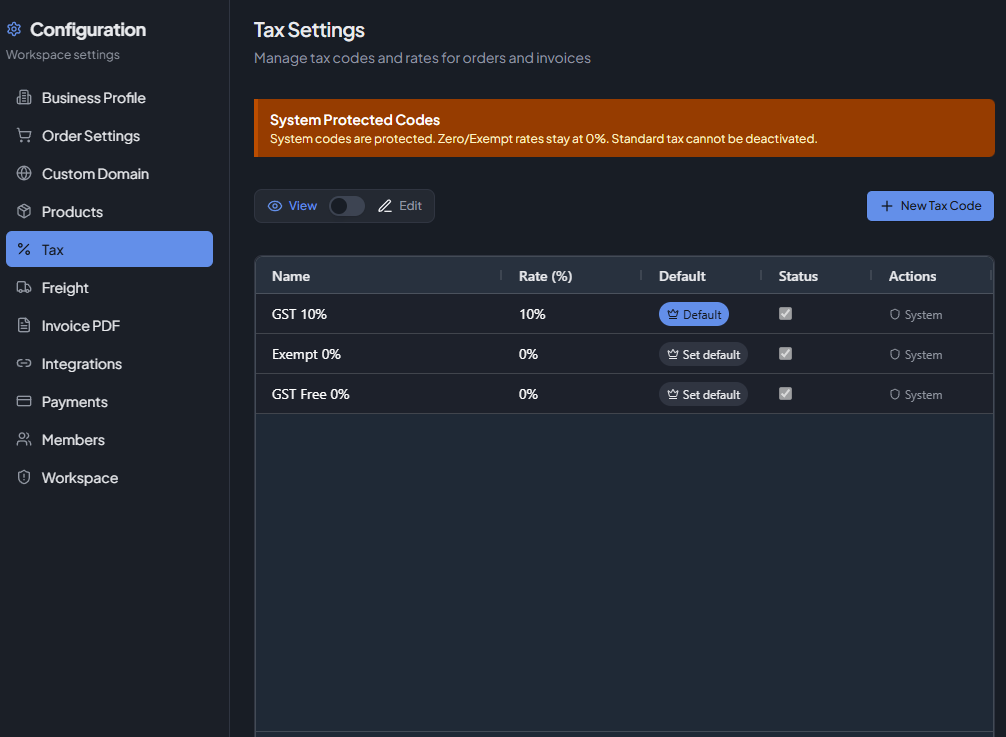
System codes
Three tax codes are built into every workspace and cannot be deleted:
| Code | Rate | Notes |
|---|---|---|
| TAX_STANDARD | Configurable | The main tax rate (e.g. GST 10%). Cannot be deactivated. |
| TAX_ZERO | 0% fixed | Zero-rated. Rate cannot be changed. |
| TAX_EXEMPT | 0% fixed | Tax-exempt. Rate cannot be changed. |
System codes are marked with a System badge in the grid. Their names can be renamed but their core behaviour is protected.
Tax code grid
The grid shows all tax codes with the following columns:
| Column | Description |
|---|---|
| Name | Display name for the tax code. |
| Rate (%) | Tax rate as a percentage. |
| Default | The code used as the default when no tax code is specified. Click Set default to change. |
| Status | Active or inactive. Inactive codes are not available for new assignments. |
| Actions | Delete (custom codes only). |
Edit mode
Toggle Edit / View to switch the grid between read-only and editable mode. In edit mode you can update the name, rate, and active status directly in the grid.
Double-click any row (in view mode) to open the full edit dialog.
Adding a tax code
Click New Tax Code to open the add dialog:
| Field | Required | Notes |
|---|---|---|
| Name | Yes | Display name (e.g. "GST 10%"). |
| Rate (%) | Yes | Must be zero or greater. |
| Set as default | No | Makes this the workspace default tax code. |
Editing a tax code
Double-click a row (in view mode) to open the edit dialog. For system codes, only the name and default flag can be changed. Rate and active status have restrictions as described in the System codes table above.
Deleting a tax code
Only custom tax codes (non-system) can be deleted. Click the trash icon in edit mode to delete.
System codes cannot be deleted.
Default tax code
Only one code can be the default at a time. Click Set default in the grid, or check Set as default in the add/edit dialog. The default is used when no explicit tax code is chosen for a line.